What is port forwarding?
Port forwarding is a network configuration technique that allows a router to send incoming traffic from the internet to a designated device on a local network. It’s a controlled pathway between external devices and services running on your internal network.
Under normal circumstances, your router blocks unexpected incoming traffic. That behavior protects devices on your home network from unwanted access. However, some applications need incoming connections to function correctly. Port forwarding creates an exception that allows those connections through.
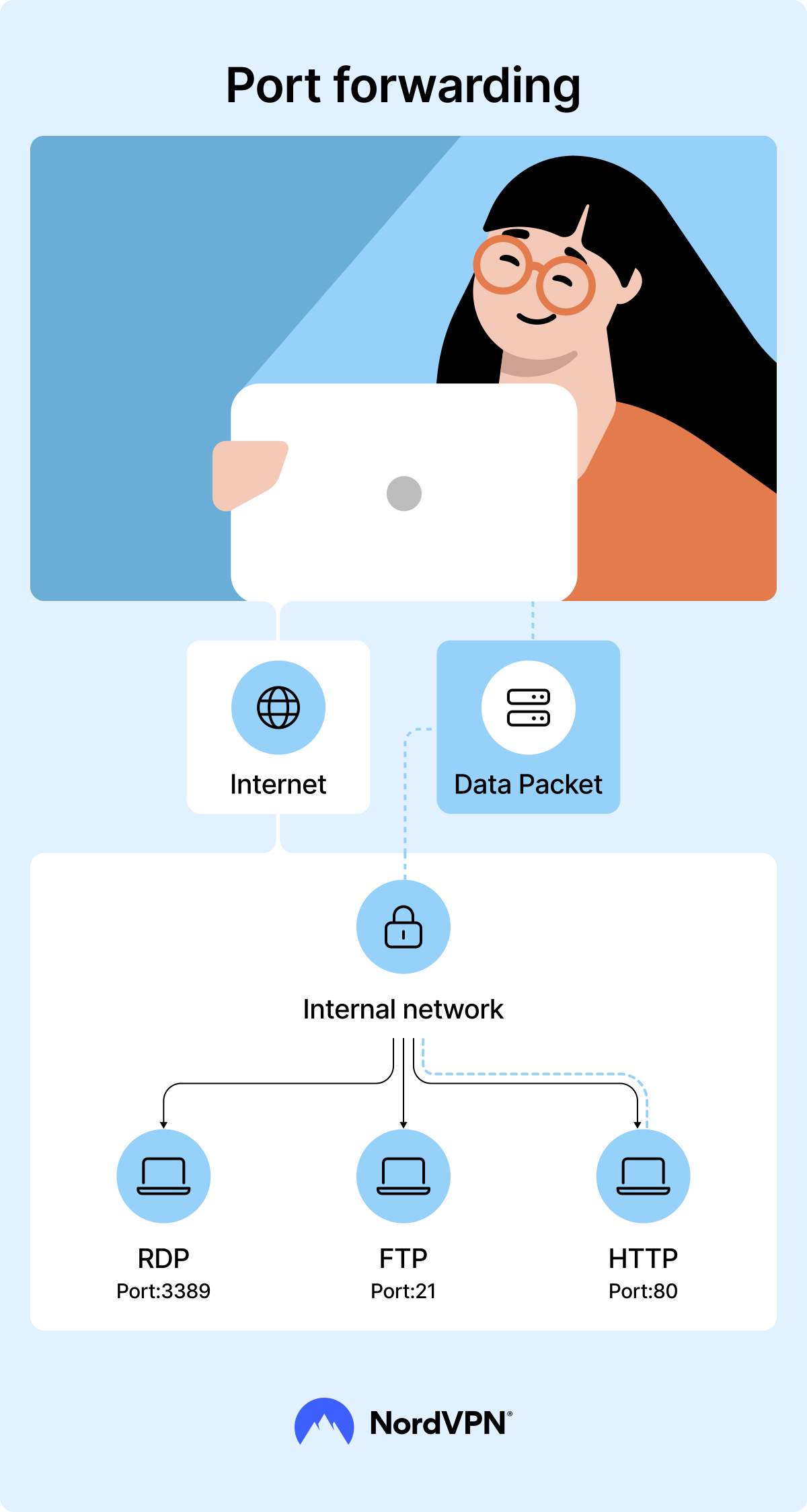
When you set up port forwarding, you create a rule that links a specific port number to a specific device. When incoming traffic arrives through that port, the router sends the connection to the correct destination, like a receptionist at a large office building.
Port forwarding is sometimes called port mapping because it links a port on your router to a specific device on your network. For example, if you run a web server at home, port forwarding allows visitors to connect to it through the internet.
How does port forwarding work?
To understand port forwarding, it helps to first understand how your router works. Because multiple devices share one public IP address, routers use network address translation (NAT) to keep track of connections.
Your NAT firewall, which resides on your router, sends incoming connections to the devices that requested them while also blocking unwanted incoming data. The firewall handles this process automatically, but if you want your home devices to connect to a remote device, you need to set up port forwarding.
Your router has over 60,000 ports. About the first 1,000 or so typically serve standard functions, such as web browsing, email, and file transfers, while the rest can be assigned to any application and service, including game servers, remote access tools, and home servers. You can do so by opening a port on your router and assigning it to a specific device.
When you configure port forwarding, you create a rule that tells your router what to do when traffic arrives on a specific port number. In other words, you tell the router: “If traffic arrives on this port, send it to this device.”
Now, when a device sends a connection request to your router, it will automatically create a direct connection.
What does port forwarding do?
Port forwarding allows external devices to connect to a specific device on your home network through a designated port. People usually set it up whenever they need direct access to a device or service on their network from another location, including but not limited to:
- Accessing security cameras remotely. Port forwarding can let you view live camera feeds, check recorded footage, or monitor your property while you’re away from home.
- Connecting to a home server. You can access resources, like your files, media libraries, applications, or other services running on your home server, from outside your local network.
- Using remote desktop software. Port forwarding allows you to connect to a home or office computer and control it remotely as if you were sitting in front of it.
- Hosting a web server. If you run a website from your own hardware, port forwarding can direct incoming visitors to the correct server.
- Managing IoT devices. Some users configure port forwarding to connect to smart home devices or access a Raspberry Pi remotely for monitoring, updates, or troubleshooting.
- Hosting or joining gaming servers. Port forwarding can help players host multiplayer sessions and run dedicated game servers. For example, you can use it to host a Minecraft server and allow other players to connect over the internet.
- Supporting VoIP services. Some voice and video communication services use port forwarding to maintain direct device-to-device connections to improve reliability and performance.
Types of port forwarding
Not all port forwarding works the same way. Depending on the application, you may need a traditional router port forwarding rule, an SSH tunnel, or an automatic protocol. Below are the most common types of port forwarding.
Static port forwarding (port mapping)
Static port forwarding involves manually creating rules in your router that direct incoming traffic on a specific port to a specific device on your network. Because the rule remains active until you remove it, this method is also known as port mapping.
For example, you can use static port forwarding to access a home security camera system to keep an eye on your home while traveling. When you connect to your home network, using your external IP address, the router forwards the request to the correct camera or recording device.
Local port forwarding
Local port forwarding allows you to forward traffic from your local machine to another server via an intermediary, usually through an SSH tunnel.
For example, if you’re working from home and need to access an internal company database, local port forwarding can route the connection through an SSH server and let you access the database as if you were connected to the office network.
Remote port forwarding
Remote port forwarding allows users to access a service running on your local machine through a remote server. It forwards connections received by the remote server back to your device through a secure channel, like an SSH tunnel.
Let’s say you’re developing an app on your local computer and want to show it to your client without deploying it to a public server. By using remote port forwarding, you can allow external access to your application running locally.
Dynamic port forwarding
Dynamic port forwarding creates a secure tunnel that can route traffic to multiple destinations, usually through a SOCKS proxy protocol. Instead of forwarding traffic to a single predefined destination, it forwards requests dynamically as they occur.
For example, you can use dynamic port forwarding to securely access email, internal work tools, and company databases while connected to public Wi-Fi. This type of port forwarding can act like a secure tunnel for your internet traffic, routing it through your home or office network.
UPnP port forwarding
Universal Plug and Play (UPnP) allows applications and devices to open and close ports automatically on your router when needed. This process removes the need to configure ports manually.
For example, some gaming consoles, video conferencing apps, and peer-to-peer applications use UPnP to establish incoming connections without requiring users to change router settings.
NAT port forwarding
NAT port forwarding uses network address translation (NAT) to direct incoming traffic from a public IP address to the correct device on a private network.
For example, if you host a multiplayer game server at home, NAT port forwarding can allow other players to connect to it through the internet while keeping the server on your local network. Some gamers also use port forwarding to change the NAT type on a gaming console, which can help support multiplayer features in certain games. While many games today use NAT traversal to establish connections automatically, some games and servers still require manual port forwarding.
How to set up port forwarding
Setting up port forwarding usually takes only a few minutes, but you’ll need access to your router settings. The exact steps for configuring port forwarding vary between routers, but the overall process remains largely the same:
- 1. Log in to your router. Enter your router’s IP address into a web browser to access the router settings. On most devices, you can find the IP address by looking up the default gateway in your network settings or by checking our “What is my IP?” page. Then enter your admin username and password and press “Login.”
- 2. Assign a static IP address to the target device. Port forwarding relies on a device’s IP address. A static IP address or DHCP reservation ensures the rule continues to point to the correct device. On most routers, you can find the device in the list of connected devices, open its settings, and enable a DHCP reservation or “static lease” option.
- 3. Open the port forwarding settings panel. Although each router’s interface is different, the section you need will typically be labeled “Port forwarding,” “Port mapping,” “NAT settings,” “Virtual server,” or something similar. Find the relevant menu item and click on it.
- 4. Create a port forwarding rule. First, select the device that should receive incoming traffic or enter its local IP address. Then provide the required details, such as a rule name, the port number, the protocol, and, if needed, an external port.
- 5. Save the rule and apply the changes. Your router will begin forwarding incoming traffic on the specified port to the selected device.
Once the rule is in place, when someone tries to connect to that port, they can reach a service running on your network without needing direct access to the device’s private IP address.
How to test port forwarding
After you finish configuring port forwarding, you should verify that it works correctly. The easiest way to test port forwarding is to use an online port checker tool. Many websites offer this service for free. To run a port forwarding test:
- 1. Go to the online port checker website.
- 2. Enter the port number you forwarded in the designated field.
- 3. Click on the “Check port” or a similar button.
You might get one of these results when using a port checker tool:
- The “Port is open” message means you’ve correctly configured your port forwarding settings, and the service associated with that port is accessible from the internet.
- The “Port is closed” answer signifies that your port forwarding settings might be incorrect. Check your router configuration and make adjustments.
- If you get “Port is filtered or blocked,” it means that something is preventing the traffic on that port from flowing freely to its intended destination. It could be that your internet service provider (ISP) is restricting traffic on that port, or it might be that some firewall rules or other security measures on your networks are blocking or filtering certain types of traffic.
How to use port forwarding more securely
Port forwarding can be safe if configured correctly, but it inherently increases your network’s attack surface by opening a direct path from the internet to your devices.
That doesn’t mean port forwarding should be avoided entirely. Millions of users rely on it for gaming, remote access, self-hosting, and device management. The key is understanding the risks and taking steps to reduce them.
Some of the best security practices when using port forwarding include:
- Open only the ports you actually need.
- Remove outdated and unused port forwarding rules.
- Use strong passwords on exposed services and enable multi-factor authentication whenever possible.
- Keep operating systems and applications updated to patch known security vulnerabilities.
- Review firewall rules regularly.
- Use encrypted protocols such as HTTPS and SSH instead of unencrypted alternatives.
- Monitor logs for unusual activity and unknown login attempts.
- Disable UPnP if you don’t need automatic port management.
- Restrict access by IP address where possible.
- Disable or remove unused services.
Port forwarding security risks
While port forwarding can provide convenient access to devices and services on your network, it also introduces additional security considerations. Every time you open a port, you create a new path that allows incoming connections from the internet. If you don’t secure the service behind that port properly, attackers may try to take advantage of it.
Think of your network as a house and each open port as a door. Port forwarding unlocks a specific door and tells visitors exactly where it leads. This process makes legitimate connections possible, but it also means anyone who finds that door can try to use it.
The more open ports you maintain, the more opportunities attackers have to discover exposed services and look for weaknesses. Common security risks associated with port forwarding include:
- Unauthorized access. Attackers may attempt to access exposed services, especially if they rely on weak passwords or outdated authentication methods.
- Exposure to software vulnerabilities. If an application contains an unpatched security flaw, attackers may use an open port to exploit it.
- DDoS attacks. Services that accept incoming connections can become targets for denial-of-service attacks that overwhelm them with traffic.
- Increased attack surface. Every open port creates another potential entry point into your network.
- Lack of encryption. Port forwarding itself does not encrypt traffic. If the service uses an unsecure protocol, attackers may intercept or monitor the data being transmitted.
- Misconfigured services and firewall rules. Incorrect settings can expose sensitive applications or administrative interfaces to the internet.
These risks don’t make port forwarding inherently unsafe, but it’s important to carefully manage which ports you open and secure any service you make accessible from the internet.
Alternatives to port forwarding
Port forwarding isn’t the only way to enable remote access or connect to services on another network. Depending on your needs, you may find one of these options below a simpler or more secure approach.
A VPN with port forwarding
Some VPN providers offer VPN port forwarding, which allows users to forward traffic through a VPN server instead of exposing services directly through their home network. This approach can be useful for hosting services, remote access, and certain peer-to-peer applications.
NordVPN offers a dedicated server add-on that provides users with dedicated virtual server resources and a static IP address. Dedicated servers also support port forwarding, allowing users to securely access devices on their home network and host services without exposing their real IP address.
You can also install a VPN on your router to protect all compatible devices connected to your network. A VPN creates an encrypted VPN tunnel between devices and the network they connect to, helping protect browsing data while it travels across the internet. More advanced VPN protocols, such as the NordLynx protocol (NordVPN’s proprietary implementation of the WireGuard® protocol), can provide secure connections with minimal impact on performance.
SSH tunneling
SSH tunneling provides another way to access services and devices remotely without exposing them directly to the internet. Local port forwarding, remote port forwarding, and dynamic port forwarding all rely on encrypted SSH connections to route traffic securely between devices.
Developers and system administrators often use SSH tunneling to access internal applications, databases, and servers from outside a private network.
Cloud-based remote access solutions
Many remote access tools use cloud infrastructure to connect devices without requiring manual port forwarding. Instead of opening ports on a router, devices establish outbound connections to a cloud service that facilitates communication between them.
This approach can simplify setup and reduce the need to manage port forwarding rules manually.
Port forwarding vs. port triggering
Port triggering is a feature on a NAT-enabled router that opens incoming ports in response to specific outbound traffic, allowing devices on your network to communicate with external devices and services.
While both allow incoming connections, port triggering only opens ports when they’re needed and closes them automatically afterward. This behavior helps reduce some of port forwarding’s security vulnerabilities, but it also limits the situations where port triggering can be used.
First, when you set up port triggering, the selected port remains closed until a device on your network initiates an outbound connection.
Once that connection ends, the router closes the port automatically after a set period. This makes the connection more secure because it puts the local device in control of opening the connection. However, it also means these connections are difficult or almost impossible to initiate from the outside, which makes port triggering less suitable for services that need to remain continuously accessible from outside the network.
Second, port triggering doesn’t require you to assign the rule to a specific device’s internal IP address. Instead, any device on your network can initiate the connection, although only one device can typically use the triggered port at a time. Port forwarding, by comparison, directs traffic to a specific device. Depending on your router and your devices, this process can make port triggering either a more or less secure choice than forwarding.
Online security starts with a click.
Stay safe with the world’s leading VPN
