How to use a VPN in a few simple steps
To use a VPN, all you need to do is sign up for a VPN provider, download its VPN app, and connect to a VPN server. Here’s a short video that explains a step-by-step process when using NordVPN.
1. Select a VPN service subscription
To start using a VPN, first, find a reliable provider and buy a VPN service subscription. If you’re not sure which service you should pick, compare the most popular VPN providers and see which covers your needs the best.
2. Download the VPN app
Once you’ve done your research and signed up for a VPN service, you can download the VPN app, and install it on your device. Most VPN apps, including NordVPN, are available to download on multiple platforms, such as PC (Windows, macOS, Linux), mobile phones and tablets (Android and iOS), or even your router.
3. Set up the VPN
To set up a VPN, simply install the VPN app, enter your credentials, and you should be all set. Leading VPN providers typically offer easy-to-set-up VPN apps that don’t require extensive technological know-how.
If you’re using NordVPN, you can also go to the app’s settings to turn additional features on or off, like Kill Switch, and to switch protocols. For more tips on setting up a VPN, you can check out NordVPN’s blog articles and support center.
4. Connect to a VPN server
To connect to a VPN server, open your VPN app, navigate to the country servers list, and click on your preferred country. While these instructions may vary depending on the VPN provider, the overall process should be simple and straightforward.
If you’re using NordVPN, you can just click the “Secure my connection” button, and the app will find and automatically connect to the closest VPN server for you. You can also easily change the VPN location by clicking on a country pin to connect to that particular country or by scrolling down the server list and picking the one you want to connect to.
PRO TIP
VPN connection speeds may differ, depending on the server load, its location, and your internet connection, so take that into consideration. With NordVPN, it shouldn’t take longer than a few seconds (1-2 minutes in the worst-case scenario).
How to use a VPN on different platforms
To use a VPN on different platforms, buy a VPN subscription, install a VPN app on your device (typically PC, smartphone, smart TV, or tablet), and sign in to your account. If you use NordVPN, you can set it up on Windows, macOS, Linux, iOS, and Android, making it arguably the best VPN to use with numerous devices and operating systems.
Here are detailed instructions on how to download, install, and start using a VPN on each operating system.
How can you get a VPN service on multiple devices?
To get a VPN for multiple devices, all you need to do is:
- 1.Get your VPN subscription.
- 2.Download the VPN app on the gadgets (such as computers, smartphones, or smart TVs) you want to use it on.
- 3.Sign into your VPN account.
PRO TIP
If you use a NordVPN account you can connect to a VPN on up to ten devices simultaneously.
While the most popular operating systems have dedicated VPN apps, some gadgets might need manual configuration. To set up NordVPN manually, our customer support is ready to offer assistance and answer all VPN-related questions 24/7. The service also supports eight different platforms, providing a safer internet connection to users regardless of whether they use a VPN for smart TV, console, or smartphone.
How can I test if my VPN is working?
To test if your VPN is working, you can simply run a VPN test or follow these simple steps:
- Check your VPN status. Open your VPN app and look for the VPN status icon. If your VPN is working, you should see a “Connected” status written on your app’s screen. You can also turn VPN off and back on to check if anything changes in the app.
- Check your IP address. Look up your IP address, then connect to a VPN server and check it again. If it’s different from before, your VPN is working.
- Check for DNS leaks. Domain name system (DNS) leaks can happen if a VPN fails to encipher your DNS traffic or when DNS queries are sent outside the encrypted VPN tunnel. To check whether that’s the case, run a DNS leak test.
- Check for WebRTC leaks. Web Real-Time Communication (WebRTC) is a real-time communication technology supported by most major browsers. It can reveal your real IP address through STUN requests even when a VPN is connected. Checking it for leaks can also show if your VPN is working.
Why use a VPN at all?
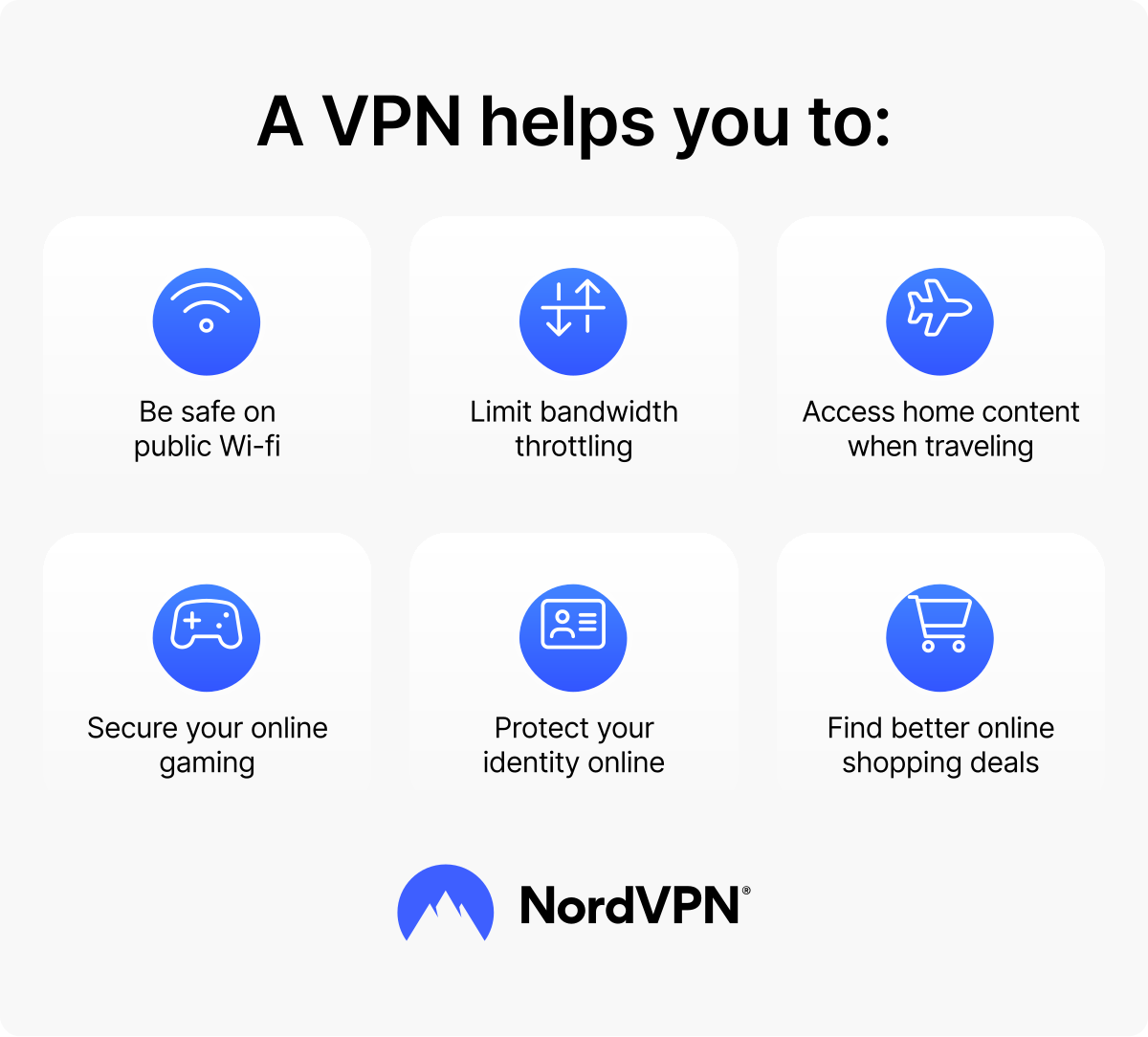
For those wondering why use a VPN, the basic answer is because it keeps you safer online. You can also find other useful ways to use a VPN, like finding better shopping deals or easily accessing your home content when abroad. Check out the most common benefits of using a VPN below.
Secures your connection on public Wi-Fi
Connecting to unprotected public Wi-Fi is risky because these networks are often unencrypted, which can expose your traffic and metadata to others on the same network. If it falls in the wrong hands, that data can become a gateway to access your online accounts or launch phishing attacks. Malicious actors may also sell your data to the highest bidder.
Using a VPN when connecting to public Wi-Fi encrypts your web traffic, making it unreadable to threat actors. It’s a simple yet effective way to secure connection when browsing the internet on a public Wi-Fi or using mobile data.
Helps limit ISP bandwidth throttling
A VPN can reduce internet service provider (ISP) bandwidth throttling, but only if your ISP throttles connections based on traffic type. Since a VPN encrypts your browsing data, it can prevent your ISP from identifying and selectively throttling your connection in cases such as automated ISP slowdowns tied to specific high-bandwidth applications (such as online game apps, or streaming platforms). However, it won’t work if the slowdown is the result of you exceeding your monthly data allowance or if an ISP-wide speed reduction applies to all traffic equally.
Lets you access content while traveling
With a VPN, accessing your subscribed home content on the road becomes so simple. Streaming platforms, news networks, and service providers often diversify or limit access to their intellectual property, making it difficult or impossible to access your subscribed content while outside the country. So if you wish to see your beloved TV show, read the news from your local broadcaster, or sign into your banking account, VPN country servers can help you virtually teleport back home and do just that.
Important: Please note that using NordVPN for any illegal activities is strictly prohibited and violates our terms of service.
Helps safeguard your gaming
Due to its massive size, the gaming industry often suffers leaks and DDoS (distributed denial of service) attacks, which is why gamers might benefit from using a VPN. While not an ultimate security measure, a VPN can help gamers avoid exposing their IP and home addresses to malicious actors. Players who use NordVPN additionally get a next-gen antivirus*, capable of blocking malicious downloads and phishing links, reducing the risk of downloading malware-ridden game files and falling for ruses such as GTA VI scams.
*Read more about NordVPN’s next-gen antivirus in the next-gen antivirus whitepaper.
Protects your identity
Your device’s IP address is how the internet recognizes and connects you to information (like a website you’re trying to visit). But your IP address can also be used to find out who you are, down to the town or city you live in. And it’s only the tip of the iceberg, compared to what a hacker could do with your IP address. VPN usage allows users to change their IP address, providing more privacy online and safeguarding against malicious actors.
Helps you find the best deals when shopping online
Some online shops may adjust their pricing depending on your virtual location (IP address). Using a virtual private network allows you to hop between the servers, potentially resulting in better shopping deals. It can save you money but can also help to protect your data while you shop. So if you’re still wondering whether you need a VPN, you now have at least a few reasons to consider getting it.
What are the pros and cons of using a VPN?
A VPN can have lots of benefits, but like everything, it also comes with some drawbacks. Below you’ll find the most common pros and cons of a VPN.
| | Pros | Cons |
|---|---|---|
Privacy | Hides your IP and location | Some VPN providers might log your activity (especially free VPN services) |
Security | Encrypts your traffic | — |
Access | Lets you access subscribed home content while traveling | Some sites block VPN servers |
Speed | Bypasses ISP throttling in some cases | Slight slowdown from encryption* |
Browsing | Fewer targeted ads | More CAPTCHA prompts |
Cost | Free tiers exist | Good services need a subscription |
Ease of use | One-click apps | Setup varies by device |
*The slowdown comes from encryption and the extra distance your data travels to the VPN server, but you can usually fix it through your own settings — it’s not a flaw in the VPN itself. Picking a server closer to you, switching to a lighter protocol like WireGuard®, or using split tunneling usually restores near-normal speeds.
What are the best VPN protocols to use?
The list of VPN protocols is long and extensive. Each of them offers particular benefits, tailored to specific needs — for example, some may focus more on encryption, while others fixate on speedy connections. Here’s the list of the most common VPN protocols.
| Protocol | Best for | Security | Speed | Supported by NordVPN |
|---|---|---|---|---|
OpenVPN | All-round everyday use | High | Fast | Yes |
IKEv2/IPsec | Mobile devices — keeps the connection when switching from Wi-Fi to mobile data | High | Fast | Yes |
WireGuard® | Speed and stability on modern devices | High | Very fast | Yes (used for the NordLynx protocol, which is NordVPN's proprietary implementation of WireGuard®) |
NordWhisper | Restrictive networks — blends in with regular traffic | High | Moderate | Yes |
SSTP | Bypassing firewalls | Secure, but Microsoft-owned | Moderate | No |
L2TP/IPsec | Older systems | Secure (needs IPsec to encrypt) | Slow | No |
PPTP | Legacy devices only — obsolete | Very low | Fast | No |
Along with VPN protocols, some VPNs also include additional features that may improve your online safety. And when it comes to online security, few providers offer as many benefits as NordVPN.
How to use advanced VPN features
If you're using NordVPN, you'll get access to robust security and privacy features that'll leave you wondering why you didn't use a VPN before. From specific server locations and types to benefits such as next-gen antivirus, here are some of the best NordVPN features.
1. VPN server locations
Connecting to a different VPN server changes your IP address and makes your traffic appear to come from that location. NordVPN offers thousands of VPN servers covering 224 locations worldwide, so you can pick one based on what you need — a server close to you for the fastest speeds, or a server in a specific country like the UK, Canada, or Australia to access content you're subscribed to while traveling. You can find it under the main app screen by going to the server list on the left (or the map) and picking a country, or hitting "Secure my connection" to let NordVPN choose the fastest server for you.
2. NordVPN’s Kill Switch
Like any other VPN kill switch, NordVPN's Kill Switch cuts your internet connection if the VPN drops, so no unencrypted traffic ever leaves your device. You can also set it to close only specific apps instead of blocking the whole connection. You can find it under “Settings,” choosing “VPN settings” and then “Kill Switch.”
3. NordVPN's next-gen antivirus
NordVPN's next-gen antivirus (powered by real-time scam, phishing, and malware protection) is a built-in protection tool that blocks malware, phishing sites, and trackers. It scans files as you download them and stops you from landing on websites known for scams or malicious code. It also blocks ads and trackers, so pages load cleaner and fewer companies follow you around the web. Unlike the VPN itself, it keeps working even when you're not connected to a server. You can find it under the scam, phishing, and malware protection tab on NordVPN’s desktop app — click the shield icon with a lightning bolt in the middle and toggle malware protection, ad blocking, and tracker blocking individually.
4. Meshnet
Meshnet is NordVPN's secure file-sharing feature that links your own and invited devices into a secure, encrypted private network enabling private file transfers, remote access, and routing traffic through a trusted device without touching third-party servers. You can move files between laptops, phones, servers, and other hardware without them ever touching a third-party cloud. It works with your own devices as well as those belonging to friends, family, and coworkers, and each person controls who gets access. You can enable it in settings by clicking “Meshnet,” choosing “Enable Meshnet,” and then adding devices by their Nord name.
5. Specialized servers
Specialized servers are NordVPN servers configured for specific jobs rather than general browsing. Each type routes your traffic differently depending on what you need — extra encryption, or hiding the fact that you're using a VPN at all. They work like any other server: one click connects you. You can find them under the server list by clicking “Specialty servers” at the top of the country list.
- NordVPN's Double VPN. NordVPN's Double VPN routes your traffic through two servers instead of one, encrypting it twice. It's worth using when you want more protection while browsing, shopping online, or accessing content you're subscribed to.
- Obfuscated servers. NordVPN's obfuscated servers disguise your VPN traffic as regular internet traffic, so your ISP can't tell you're using a VPN. They're useful on networks that block or throttle VPN connections.
How to choose the right VPN for your needs
Not all VPNs offer the same level of protection, and the differences between providers are easy to miss until something goes wrong. Use this checklist to compare your options.
7 things to look for in a VPN:
- 1.No tracking. The provider should not record what you do online, and the claim should be backed by an independent audit, not just a marketing page.
- 2.Independent security audits. Reputable providers hire third-party firms to test their infrastructure and publish the results.
- 3.Strong encryption and modern protocols. Look for AES-256 or ChaCha20 encryption and support for WireGuard®, OpenVPN, and IKEv2/IPsec.
- 4.Kill switch and leak protection. A kill switch blocks traffic if the VPN drops, and DNS leak protection stops your real location from slipping out.
- 5.Server count and country coverage. More servers in more countries means better speeds and more location options; anything above 5,000 servers across 60+ countries is solid.
- 6.Transparent pricing. Free VPNs typically monetize your data instead, which is why a paid subscription with a clear refund policy is safer.
- 7.Advanced features. Extras like malware and ad blocking, multi-hop connections, obfuscated servers, and secure device-to-device networking add real value beyond basic encryption.
In addition, you can also check jurisdiction (which country's data laws the provider falls under), simultaneous device connections, whether RAM-only servers are used, and the quality of 24/7 customer support.
PRO TIP
Remember that free VPNs don't offer the same features, services, and quality standards as a premium service like NordVPN. Companies that don't charge up front are likely to log and sell your data to make a profit, and won't provide the levels of security and privacy you need.
To get the most out of your VPN, get NordVPN, and enjoy three extra months of premium security features and thousands of ultra-fast VPN servers covering 224 locations worldwide. If you want to know more about VPNs, check out other NordVPN articles or our VPN for dummies guide for more answers to some of the most frequently asked questions.
Online security starts with a click.
Stay safe with the world’s leading VPN