Does a VPN work with Tinder?
Yes, Tinder works with a VPN in the Android and iOS apps and in web browsers. Tinder supports iOS 16.0 and later, Android 10.0 and later, and the latest versions of major browsers, including Chrome, Firefox, Safari, and Edge.
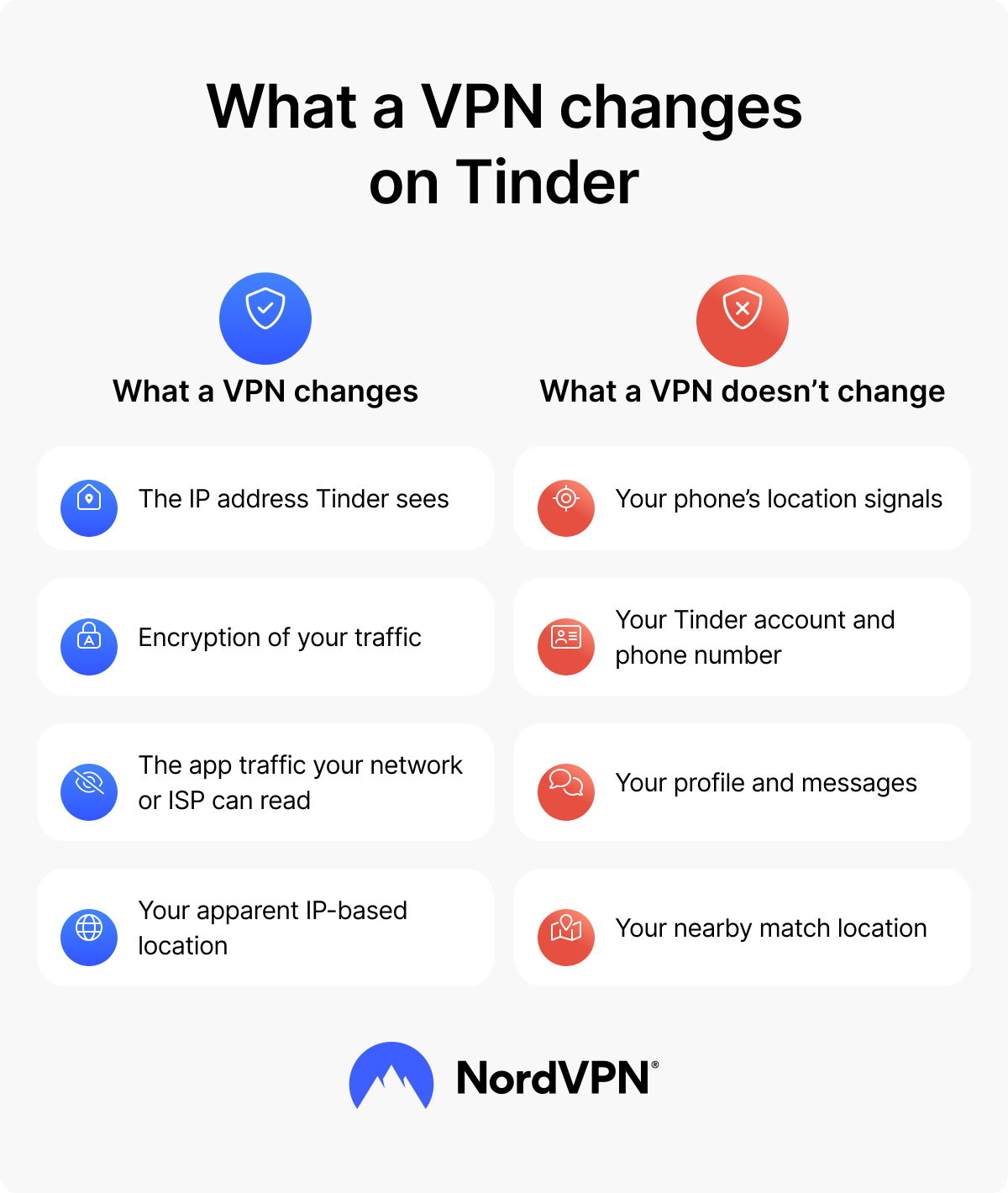
When you connect to a VPN, Tinder sees the VPN server’s IP address instead of your real IP address. A VPN also encrypts your traffic between your device and the VPN server. Tinder already uses HTTPS to protect data in transit, so VPN encryption mainly adds another layer of security on top. It also keeps your local network administrator or internet service provider (ISP) from seeing that you connect to Tinder.
A VPN doesn’t change your Tinder account, phone number, profile, messages, or your phone’s location data. Tinder can still access the account details you provide and use your permitted location data to show matches, calculate distance, and support location-based features.
Tinder may ask for extra checks if it detects unusual account activity. Some VPN servers may also fail to load Tinder because of connection issues or IP address blocks. If Tinder doesn’t work with your VPN, check the Does a VPN affect Tinder? Common issues and how to fix them section below.
Why use a VPN for Tinder?
People use VPNs with dating apps for practical reasons, such as more privacy on shared networks, a safer connection on public Wi-Fi, and access to Tinder while traveling on networks that block dating apps.
A VPN won’t make you anonymous on Tinder, but it can give you more control over how your device connects to the platform, especially on networks you don’t fully trust or can’t access without a VPN.
Let’s look at each benefit in more detail.
More privacy for your dating life
Your choice of dating app is personal, and you can keep it private from the networks you connect to. Without a VPN, your ISP or the network operator at your school or workplace may see that your device connects to Tinder’s services. With a VPN, they see an encrypted connection to a VPN server instead.
PRO TIP
For a broader explanation, check out NordVPN’s guide to VPNs and privacy to better understand what information a VPN can and can’t protect.
Safer swiping on public Wi-Fi
People often open Tinder on shared Wi-Fi in cafés, airports, hotels, and bars. Some of these networks are open. Others use weak settings or shared passwords, which can make it easier for other people on the same network to monitor your traffic.
A VPN helps by encrypting your data in transit — data that moves across a network, such as traffic between your device and a VPN server. Encryption scrambles that traffic, so nearby users can’t easily read it.
If you buy Tinder Plus, Gold, or Platinum on public Wi-Fi, VPN encryption can protect your connection during checkout. The payment itself goes through the App Store on an iPhone, the Google Play Store on an Android device, or Tinder’s accepted web payment methods on Tinder for Web. Those providers run their own security checks and billing systems, and a VPN doesn’t replace those protections.
PRO TIP
Turn on your VPN’s auto-connect setting for untrusted Wi-Fi networks. Auto-connect helps your VPN start encrypting your traffic before you even open Tinder.
Accessing Tinder while traveling or on restrictive networks
Some public Wi-Fi networks filter dating apps. If a network restricts Tinder, a VPN can help because it routes your traffic through an encrypted connection to a VPN server. That route may get around some local network filters.
VPN and dating app rules also differ by country. Some countries restrict dating apps or ban VPN use, so check local laws before your trip and follow them. A VPN doesn’t give you permission to act against local law, network rules, or Tinder’s terms.
If the network blocks VPN traffic itself, NordVPN offers features that can help with local restrictions. The NordWhisper protocol is designed for networks that usually limit VPN traffic. NordVPN’s obfuscated servers run on NordWhisper, so VPN traffic resembles regular web traffic.
DISCLAIMER
Please note that using NordVPN to bypass any regulatory or judicial measures, or for any other illegal activity, is strictly prohibited and violates our Terms of Service. Make sure you use NordVPN in compliance with all applicable laws and regulations, as well as the terms of any websites or services you access using NordVPN.
Extra protection from Tinder scams and malicious links
A VPN can secure your connection, but it can’t stop catfishing, Tinder bots, or romance scams. These schemes use social engineering, which means scammers manipulate targets into trusting them, clicking links, or sending money.
Watch out for matches who:
- Move the chat to another app quickly.
- Ask for money, gift cards, crypto, or bank transfers.
- Send “verification” links.
- Push investment offers.
- Avoid video calls or in-person plans without a clear reason.
Beyond a secure VPN connection, the NordVPN service adds security features that can help when a scam involves a malicious link. On phones, NordVPN’s real-time protection blocks websites known for phishing, fraud, malware hosting, and other malicious activity. On Windows and macOS, a next-gen antivirus can also scan downloading files and block malicious ones.
FURTHER READING
NordVPN’s research on romance scams found that Tinder was the most discussed dating platform on the dark web and in Telegram channels. Scammers target other dating apps too, and each app handles privacy, reporting, location, and account security differently. These guides explain how privacy and safety work on other popular dating apps:
Can a VPN change your Tinder location?
No, a VPN won’t change your Tinder location on a phone. Many people search for ways to change their Tinder location with a VPN, but the idea usually comes from a misconception. A VPN masks your IP address, so Tinder may see the VPN server’s IP address instead of the one your ISP assigned to you, but a VPN doesn’t change the location your phone reports through location services.
The same limit applies to other dating apps, such as Hinge, if they use your phone’s location services to set your match area. A new IP address won’t move your nearby match location by itself.
Some users try GPS spoofing apps, mock-location tools, rooted phones, or jailbroken devices to change their Tinder location. These methods can put an account at risk because Tinder’s terms of use prohibit third-party apps or services that directly interact with Tinder’s services, member content, or member information without written consent.1 Its community guidelines also tell users not to use third-party apps or other technology to unlock features or game the system.2
How Tinder tracks your location
Tinder needs location access to work. Tinder Help states that “to use Tinder, you’ll need to grant access to your device’s location,” and its location guide includes instructions for iOS, Android, and Tinder for Web.3
On iOS, location services can use cellular, Wi-Fi, GPS, and Bluetooth signals to determine your location.4 On Android, location services can use GPS, Wi-Fi, mobile cellular networks, device sensors, and Wi-Fi or Bluetooth scanning to estimate your location.5 Tinder for Web also asks for browser location permission.
You can limit Tinder’s location permission in your phone settings. Tinder recommends “While using the app” on iOS and “Only while using the app” on Android.3 If you remove location access, Tinder may not work as expected because the app needs location to show nearby matches.
Tinder Passport: The official feature for changing your location
Tinder Passport is Tinder’s built-in feature for changing where you swipe. It lets you search by city or drop a pin on the map, then connect with people in that desired location.6
Passport is available as a standalone purchase and as part of Tinder Plus, Tinder Gold, and Tinder Platinum.6 Availability and plan inclusion can vary by region, so check Tinder’s current plans in your market.
Tinder doesn’t list one fixed price for everyone. Its terms state that pricing can vary by region, subscription length, past purchases, and ongoing price tests.1
A VPN and Passport do different jobs. Passport changes where you match. A VPN masks the IP address Tinder sees and gives your connection more privacy and security. If you want to swipe in another city, Passport is the in-app option for it. If you want to protect your connection, use a VPN.
| Method | Changes IP address | Changes match location | Follows Tinder’s rules |
|---|---|---|---|
VPN | Yes | No, on mobile | Yes |
Tinder Passport | No | Yes | Yes |
GPS spoofing apps | No | Sometimes | No |
How to use a VPN with Tinder
The steps for connecting to a VPN before opening Tinder are similar on iOS, Android, and desktop. To start using a VPN with Tinder:
- 1. Choose a VPN provider and subscribe.
- 2. Download the VPN app on your phone or computer.
- 3. Log in and connect to a server, ideally in your own country.
- 4. Open the Tinder app or tinder.com.
- 5. Sign in to Tinder as usual.
- 6. If Tinder doesn’t load, switch to another server in the same country.
A local VPN server is a good choice for Tinder. It keeps the IP address Tinder sees closer to the location your phone reports through location services. A nearby server can also help keep speeds stable.
PRO TIP
Keep a VPN kill switch on. If your VPN connection drops, the kill switch blocks internet access until the VPN reconnects. This feature helps stop traffic from leaving your device outside the encrypted tunnel, so your real IP address isn’t exposed mid-chat.
Does a VPN affect Tinder? Common issues and how to fix them
A reliable VPN won’t noticeably slow down swiping or messaging on Tinder. In some cases, a VPN server may fail to load the dating platform, trigger extra checks, or slow down photo loading. Most issues are easy to fix by switching servers, checking your app, or changing your VPN settings.
| Problem | Quick fix |
|---|---|
Tinder won’t load or shows an error | Switch to a different server, preferably in your own country. |
Extra verification or CAPTCHA tests when using a VPN | Complete the check or try another server. Shared VPN IP addresses can trigger extra checks. |
Photos load slowly | Connect to a closer server or try a different VPN protocol. |
Login or SMS code issues | Update the Tinder app, restart it, then reconnect to the VPN. |
Restart the VPN app and your device, check your network, and change the VPN protocol. |
Avoid tips that promise to lift a Tinder ban with a VPN. A VPN won’t remove an account ban, and trying to bypass enforcement can create more account problems.
How to choose the best VPN for Tinder
The best VPN for Tinder protects your connection without making the app harder to use. When choosing a VPN service, look for clear privacy policies, strong encryption, fast nearby servers, reliable mobile apps, and an auto-connect feature for untrusted Wi-Fi networks.
Download VPN apps only from official app stores or the provider’s website. Fake VPN apps can collect your data, show intrusive ads, or expose your traffic instead of protecting it.
Why choose NordVPN for Tinder?
NordVPN is built for fast, simple protection across your devices. It can help keep your Tinder connection private on shared networks, protect your traffic on public Wi-Fi, and give you extra security features beyond a standard VPN connection.
For Tinder users, the most useful NordVPN features include:
- High-speed VPN connections for smooth swiping, messaging, and photo loading.
- Easy-to-use apps for phones, tablets, and computers.
- Extensive server network with thousands of secure VPN servers across 225 locations.
- Protection for up to 10 devices with one account.
- Real-time protection that blocks known malicious websites on phones, plus a next-gen antivirus that scans downloads on Windows and macOS.
- Specialty server options, including obfuscated servers for networks that block VPN traffic.
- A free trial where available and a 30-day money-back guarantee.
Online security starts with a click.
Stay safe with the world’s leading VPN
Disclaimer: We last verified the information about Tinder’s features on November 10, 2026, through official sources. Tinder can change its features and policies at any time. The trademarks referenced are for illustrative purposes only. NordVPN is not affiliated with, sponsored by, or endorsed by the owners of those trademarks.
FAQ
References
1 Tinder. (2026, March 1). Tinder Terms of Use. https://tinder.com/terms/intl/en-GB/ opens in a new tab
2 Tinder. (n.d.). Community guidelines. https://tinder.com/community-guidelines/intl/en-GB/ opens in a new tab
3 Tinder. (n.d.). Grant access to device location. Tinder Help Center. https://www.help.tinder.com/hc/en-us/articles/115005668326-Grant-Access-to-Device-Location opens in a new tab
4 Apple. (2026, May 20). About privacy and Location Services in iOS, iPadOS, and watchOS. Apple Support. https://support.apple.com/en-us/102515 opens in a new tab
5 Google. (n.d.). Manage your Android device’s location settings. Google Account Help. https://support.google.com/accounts/answer/3467281?hl=en opens in a new tab
6 Tinder. (n.d.). Passport Mode. Tinder Help Center. https://www.help.tinder.com/hc/en-us/articles/115004490423-Passport-Mode opens in a new tab
7 Tinder. (2026, March 31). Privacy policy. https://policies.tinder.com/privacy/intl/en-gb/ opens in a new tab
