Why the back-to-school season is high risk for cybersecurity
Back-to-school season brings a burst of online activity. You may be setting up new devices, signing in to unfamiliar university platforms, paying tuition or housing fees, buying textbooks, and responding to university messages. With so many legitimate requests arriving at once, a fake email, payment notice, or account alert can be easier to mistake for a legitimate message and slip past your attention.
University systems connect many accounts, devices, and online services, so one stolen login can put several connected services at risk. If someone gets into your university email account, they may see course materials, personal information, or payment details — and a reused password could also put your other accounts at risk.
That is why it helps to secure the basics before classes start. Updating your devices, protecting key accounts, and learning to verify unexpected messages can stop one rushed decision from turning into a bigger security problem.
The back-to-school cybersecurity checklist
You can work through this back-to-school cybersecurity checklist in around 20 minutes to strengthen the security of the devices, accounts, and connections you will rely on throughout the semester.
1. Audit and update every device before classes start
Devices and apps you have not used much over the summer may be missing important security updates. Begin your college tech setup checklist by installing every available update on the phone, laptop, tablet, browser, and apps you plan to use. Prioritize student platforms, email clients, password managers, cloud-storage apps, and antivirus software because outdated versions may contain security flaws that updates have already fixed.
Check each device for the latest compatible operating system update and install the version its manufacturer officially offers. Availability may vary by device model and hardware, so you do not need to search for a particular release number.
Turn on automatic operating-system, browser, and app updates afterward. Keeping automatic updates on helps you install security patches before classes and assignments compete for your attention.
2. Strengthen every password and turn on multi-factor authentication
Your university email, student platform, banking, and social media accounts may all become more active once the semester begins, making reused passwords an unnecessary risk. Change every password you reuse across accounts and replace it with a unique one. A breach affecting one service could otherwise give attackers working login details for another account.
A password manager lets you use a long, unique password for each account without memorizing every one. You only need to remember its master password, while the manager generates, stores, and autofills the rest. NordPass, for example, can create and securely store unique login credentials for different services.
Next, enable multi-factor authentication on your sensitive accounts. Two-factor authentication is a common form of it that uses two verification methods instead of relying on your password alone. Use an authenticator app or passkey instead of SMS when the service provides that option, and save your backup codes somewhere outside the protected device.
Finally, check whether your email address or login details have appeared in a known data breach. A breach-monitoring service checks known leaked data and alerts you if it finds a match. If it does, change the affected password immediately and review the account for unfamiliar activity.
3. Lock down campus and dorm Wi-Fi
Treat campus, library, dorm, and café Wi-Fi as shared networks instead of assuming connected devices are trustworthy. HTTPS protects the data you exchange with a website, but the local network may still see which services you connect to. A VPN encrypts traffic between your device and the VPN server, limiting what the local network can observe.
Keep a VPN connected when accessing sensitive accounts or transferring private files over shared Wi-Fi, as long as your university allows VPN use. While connected, NordVPN encrypts your internet traffic across websites and apps, reducing what others on the local network can observe about your activity. You can also learn how to secure public Wi-Fi and what determines whether public Wi-Fi is safe. Always follow your university’s rules for VPN use on its networks.
If your dorm or student housing allows a personal router, change its default administrator password, install router software updates, and use WPA3 when available. If your router does not support WPA3, choose WPA2 with AES encryption. Avoid the older WPA and WEP standards. In shared spaces, disable unnecessary file sharing and Bluetooth discoverability when not in use.
4. Recognize the back-to-school scams targeting students
Many back-to-school scams use phishing messages that imitate tuition notices, financial-aid updates, textbook offers, and university account alerts to trick you into sharing information or clicking harmful links. Open your university’s official website or app yourself and check whether the same notice appears there rather than following a link in an unexpected message.
Be cautious of calls claiming that tuition is overdue and must be paid immediately. Other student scams include fake laptop or textbook listings, scholarship offers that require an upfront fee, and supposed employers asking applicants to buy equipment, deposit a check, or share banking information.
AI-generated calls or voice messages can also imitate a relative or friend asking for urgent help. Treat a familiar-sounding voice as only one signal, not proof of identity. Verify the request by contacting the person through a known number or another channel. Furthermore, agree with family members on a private phrase they can use to confirm urgent requests.
A sense of urgency is the common thread. You should still have a way to verify the details of a legitimate request independently, even when the matter is urgent.
5. Secure your social media before move-in photos
Move-in photos can reveal more about you than you realize, especially when they show details tied to your location or university life. Before posting, check each photo for information you did not intend to publish. A room number, residence-hall name, student ID, class schedule, parking permit, or visible document may reveal where you live, when you are away, or which services you use.
Review who can see your posts and location on Instagram, TikTok, Snapchat, and any other platform you regularly use. Remove followers you do not recognize, restrict older public posts, and turn off precise location sharing.
Search for your full name together with your university to see what a stranger could learn without following you. You can still share important moments while limiting what they reveal: crop sensitive details, post after leaving a location, and share personal updates with an audience you know.
6. Prepare for a lost or stolen device
Set up your device’s built-in location and recovery tools before a phone or laptop disappears. Make sure device tracking and remote recovery are enabled, and confirm that each device appears in the account linked to it. Familiarize yourself with the available options for marking a device as lost, locking it remotely, or erasing its data.
Use a strong passcode rather than a four-digit sequence or an easily guessed pattern and set your device to require authentication shortly after the screen turns off. If you use an iPhone, enable "Stolen device protection," which adds biometric checks and security delays to sensitive account changes.
Make sure storage encryption is active so no one can easily access the files on your device if it is stolen. Macs use FileVault, while Windows devices may use Device Encryption or BitLocker. Store each device’s serial number — and the IMEI, its unique mobile identifier, for phones and cellular tablets — in a safe place (not on the device) in case your carrier, insurer, university, or police needs it.
7. Back up your coursework and academic data
Set up backups before losing an important file becomes a possibility. A practical version of the 3-2-1 backup rule is to keep the working copy on your device, sync it to a reputable cloud service with file-version history, and save another copy to an external drive.
Cloud synchronization alone is not always a complete backup solution because accidental deletions and unwanted file changes may sync across devices. Schedule automatic backups where possible and back up to an external drive regularly rather than relying on yourself to remember at the end of the semester.
Test the setup by restoring a single file and repeat that check at least once each semester so you know the backup works before a device failure or account problem occurs.
8. Use security tools that work in the background
When you are rushing between classes, studying late, or connecting to an unfamiliar network, you can easily overlook a security step. Tools such as a VPN, password manager, and next-gen antivirus can handle some protection automatically instead of relying entirely on you to remember every step.
A VPN is particularly useful if you regularly switch between dorm, library, campus, and café networks. NordVPN encrypts your internet traffic, helping protect your connection on shared Wi-Fi. Eligible plans on Windows and macOS also include a next-gen antivirus with scam, phishing, and malware protection.
These tools cannot eliminate every security risk, but they can handle some protection automatically — for example, by encrypting shared-network traffic, creating unique passwords, or warning you about some malicious links and files.
Back-to-school cybersecurity tips for parents
You can help reduce back-to-school security risks by setting a few expectations before the school year begins and adjusting your guidance to your child’s age and online habits. A younger student and someone starting college face different situations, but both benefit from knowing what to keep private, how to recognize suspicious activity, and when to ask for help.
If your child is in K-12, talk with them before the school year starts about what information they should keep private, how to respond when a stranger contacts them, and which adult they can approach after clicking on something suspicious. Reassure them that they can always tell you what happened without getting in trouble.
For younger students, talk through age-appropriate scenarios involving passwords, suspicious links, online strangers, AI-generated content, and cyberbullying. Ask what they would do in each situation, then use their answers to decide which parental controls and privacy settings to adjust based on your child’s age, devices, and online habits.
If your child is starting college, help them work through the back-to-school cybersecurity checklist before move-in, then agree on how to handle any accounts that genuinely require shared access. A shared password manager vault gives you a protected place to manage login details for financial aid, tuition platforms, or banking.
Review what you share about your children online, especially on social media. Their school, grade, class schedule, sports team, or move-in details may give scammers enough context to make a fake message sound convincing. In the US, parents can also request a free credit freeze for a child under 16 to help prevent scammers from opening accounts in the child's name.
Back-to-school cybersecurity for university IT teams
Before classes begin, university IT teams can strengthen student data protection and help students avoid common security problems, such as phishing and weak passwords, with a few reminders and simple setup requirements. The goal is to give students practical guidance on what to secure, which scams to expect, and where to report anything suspicious.
- 1. Require updates, screen locks, and device encryption on every university-managed device.
- 2. Enable multi-factor authentication for email accounts and student platforms, with an authenticator app or passkey option instead of relying only on SMS.
- 3. Cover current tuition, account verification, job, and marketplace scams in welcome messages, along with instructions for verifying unexpected requests through official channels.
- 4. Publish one easy-to-find page or button for reporting suspicious emails, and explain what students should expect after submitting a report.
- 5. Provide instructions for using the university’s remote-access VPN to reach library, research, or other restricted resources off campus.
The sooner students know how and where to report suspicious behavior, the sooner your team can act on it.
Quick-reference printable checklist
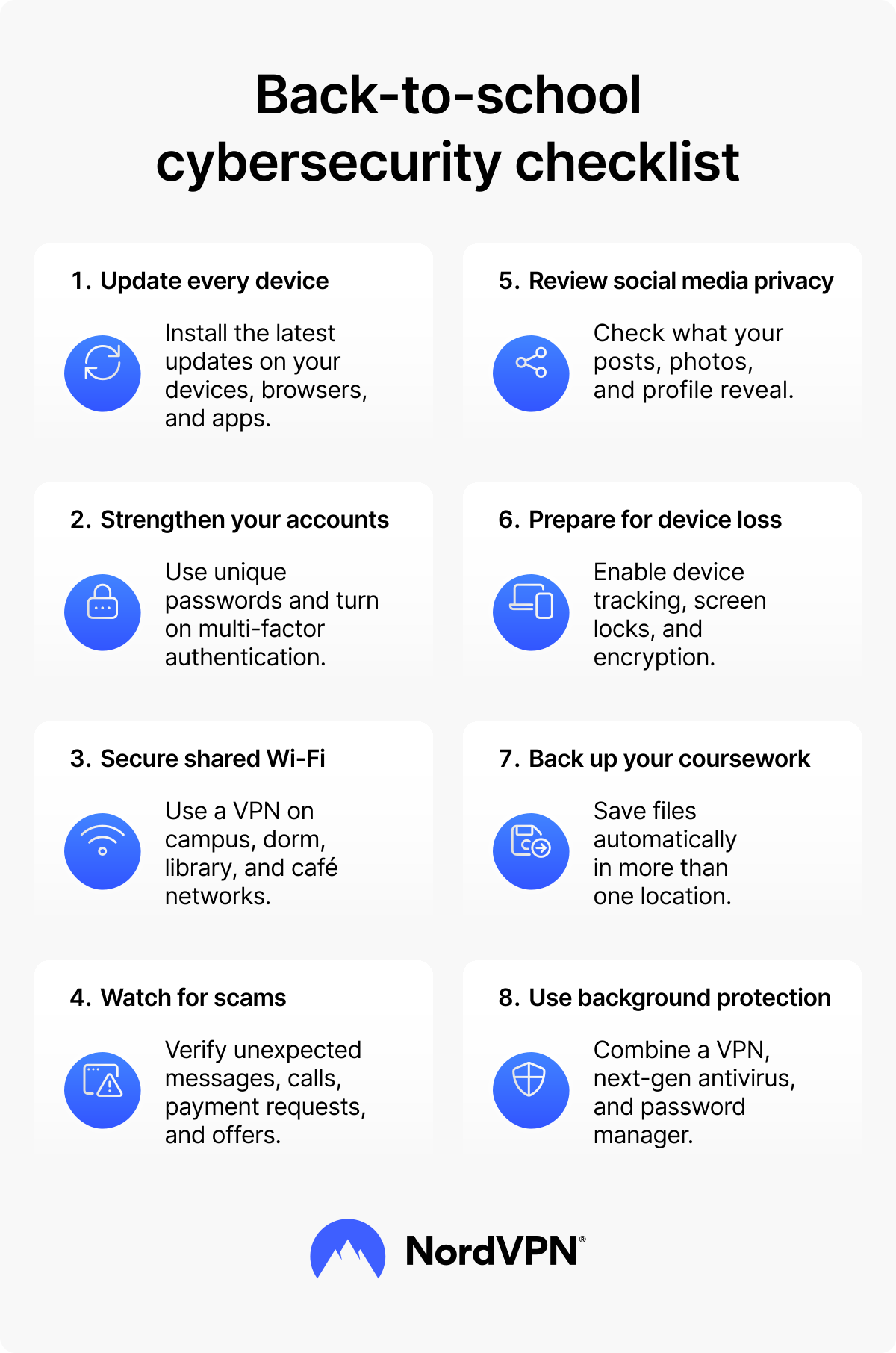
Save or share this checklist to keep the most important back-to-school security steps close at hand.
Online security starts with a click.
Stay safe with the world’s leading VPN