Key takeaways:
- Packet loss happens when data packets don’t reach their destination, causing interruptions to online activities.
- Common causes of packet loss include network congestion, hardware issues, and faulty configurations.
- Even small packet loss can lead to lag, buffering, and poor call or video quality.
- You can detect packet loss using online tools or built-in commands like ping and traceroute.
- Long-term packet loss prevention involves network monitoring, regular updates, and reliable tools like a VPN for stable routing.
What is a network packet?
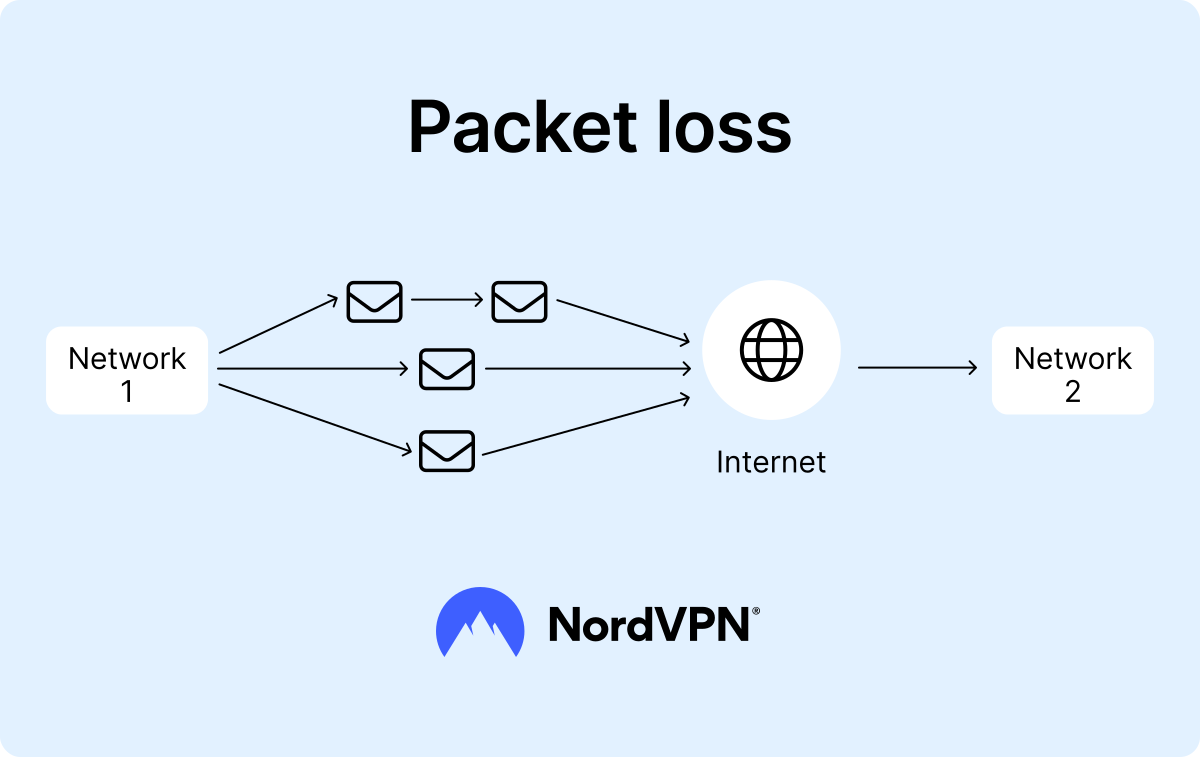
A network packet is a small unit of data that travels across a network from one device to another. Think of it as a digital envelope carrying a piece of your message — whether it’s part of an email, a video frame, or a web page request. Each packet takes its own path through the internet and is reassembled with others once it reaches its destination. This system keeps online communication fast and efficient, even when billions of packets are moving at once.
Packet loss meaning
Packet loss means that data packets traveling across a network fail to reach their intended destination. As a result, some data gets delayed or disappears entirely, leading to lost packets and reduced network performance.
When packet loss occurs, you might notice delays, frozen screens, or missing audio during online calls — all signs that your network traffic isn’t moving smoothly. You can measure packet loss using online tools or built-in system commands to identify whether the issue lies with your device, router, or internet provider.
In a healthy connection, acceptable packet loss is close to 0% because even a small amount can disrupt communication.
What causes packet loss?
The causes for packet loss can range from simple network congestion to damaged cables or outdated hardware. Below are the most common causes that affect network performance and lead to packet loss.
Network congestion
When too much network traffic flows through the same route — such as during peak hours — routers and switches struggle to handle all requests. As a result, some packets get delayed or dropped entirely, just like cars stuck in a traffic jam.
Hardware issues
Faulty or outdated equipment, such as routers, modems, or switches, can slow down your internet connection and interrupt data flow. Damaged cables or loose ports may also cause random drops that look like packet loss.
Software bugs or misconfigurations
Old firmware, driver conflicts, or incorrect settings create chaos in packet transmission, disrupting normal data flow. Updating your system software and checking configuration settings can often fix packet loss caused by these issues.
Security threats
Malware and other malicious software can overload your network traffic or intercept data packets as they move through the system. This interference creates artificial congestion, often resulting in packet loss and frequent connection drops.
Overloaded devices
When your computer, router, or mobile device runs too many applications at once, it may not have enough memory or processing power to handle the workload. This overload can slow down your network performance and cause packet loss.
Wireless network congestion
Wi-Fi networks are more prone to interference from nearby devices, walls, and signal overlap. Weak wireless coverage or multiple users on the same channel can easily disrupt packets in transit.
Faulty configurations or settings
Small errors in network setup — like incorrect IP addresses, MTU values, or QoS settings — can block or misroute packets. A quick review of network configurations can reveal simple fixes that restore connection stability.
Negative effects of packet loss
When packet loss occurs, your internet connection becomes unstable — files take longer to send, and real-time activities start to stutter. Whether caused by network congestion, weak wireless networks, or overloaded routers, even a few lost packets can harm overall network performance. These effects are noticeable across everyday tasks and business operations alike.
Slow or disrupted internet connections
Dropped packets force your devices to resend data, slowing down overall network traffic. Pages load slowly, downloads pause, and cloud sync becomes unreliable, leaving you wondering why your internet is slow.
Poor VoIP or video quality
When packet loss occurs and key data packets go missing, video and voice calls start breaking up mid-sentence. You might notice distorted voices, frozen images, and delayed conversations, all indicating that your connection needs an internet health test to check stability.
Lag in gaming or streaming
Packet loss in games or live streams can lead to rubber-banding, buffering, or dropped sessions. A wired connection helps reduce interference, while ensuring a good internet speed for gaming to keep gameplay smoother and more responsive.
Business and productivity impacts
In remote or hybrid setups, connection drops during meetings or uploads can waste valuable time. Poor network performance directly affects your workflow, which is why it’s important to understand how much internet speed you need to support daily tasks.
Interrupted network traffic
Constant retransmissions from packet loss overload routers and waste bandwidth, making it harder to maintain a consistent network connection. For VPN users experiencing these symptoms, a quick VPN speed test can help determine whether your connection problems stem from VPN server issues or your underlying internet stability.
How to test for packet loss
Testing for packet loss helps identify whether your network issues come from faulty network equipment, damaged cable connections, or overloaded servers. You can perform this test using online tools or built-in commands in your operating system. Both methods show how stable your data transmission really is.
Online tools or speed tests
Web-based packet loss tests send and receive data to measure how many packets are lost during the transfer. These tools simulate normal internet protocol activity, giving a quick overview of your connection’s health.
Simply open a reliable testing website such as Speedtest.net, run the test, and review the results — if packet loss is above 0%, an issue might be impacting your network connection.
Avoid suspicious speed testing pages that ask for extra permissions, and stick to reputable services to stay secure.
Built-in OS tools
If you prefer a manual check, every major operating system includes commands for testing connection stability.
- On Windows, open Command Prompt and type: ping [website] -n 20
- On macOS or Linux, open Terminal and type: ping -c 20 [website]
The results will show how many packets were successfully returned and how many were lost, helping you spot unstable network segments or delayed responses.
For a deeper route analysis, use traceroute (macOS/Linux) or tracert (Windows) to see where the packet drops happen along the path. Both tools can also help you lower ping by revealing where delays occur.
How to prevent packet loss
Preventing packet loss starts with building a stable and well-maintained network infrastructure. When your devices, software, and network resources are optimized, data packets can travel smoothly without getting delayed or dropped. Regular maintenance, stable wired connections, and smart monitoring practices all play a key role in keeping your network reliable.
Proactive network monitoring
Proactive monitoring means constantly observing how your network infrastructure performs — from routers and network switches to software processes that handle data packets. By using network monitoring tools, you can spot irregular traffic patterns, overloaded devices, or failing connections before they start causing packet loss. These tools visualize how your network resources are being used, helping you track latency spikes, packet drops, and performance dips in real time.
The biggest advantage of proactive monitoring is early detection. Instead of reacting after a problem appears, you can identify weak points and fix them before packet loss disrupts critical tasks. Over time, it also helps in organizing network resources more effectively, ensuring that each device and application gets the bandwidth it needs.
Regular maintenance and updates
Outdated software and neglected network equipment are among the most common causes of packet loss. Keeping your router, modem, and computer firmware up to date ensures smoother data transmission and fewer compatibility issues between devices. Regular operating system updates also improve how your system handles connections and prevent known bugs that can interfere with your network.
Physical maintenance matters too. Dust, loose cable connections, or poorly ventilated hardware can lead to overheating and unstable performance. Clean your devices periodically, check for damaged cables, and make sure your connections are secure. These small, consistent habits help your network infrastructure stay stable and efficient, reducing the chance of packet loss over time.
Capacity planning and device upgrades
Every network has a maximum capacity, and when it’s reached, packet loss becomes unavoidable. Older routers and network switches often struggle to handle the growing number of connected devices, leading to delays or dropped data packets. Upgrading to modern equipment ensures faster processing speeds, better heat management, and stronger signal stability — all important for preventing bottlenecks in your network infrastructure.
As your home or office setup expands, scaling up bandwidth is just as important as upgrading hardware. Planning ahead for higher network traffic keeps your network resources from becoming overloaded. By investing in more capable devices and sufficient bandwidth, you maintain a smoother flow of information and reduce the risk of packet loss, even during peak usage.
Using VPN
A VPN can sometimes reduce packet loss by rerouting your internet traffic through a more stable or less congested path. When your ISP’s routing is inefficient or overloaded, a VPN creates an alternative route for your data packets, which can help stabilize your network connection and improve network performance. It can also help in cases where ISPs throttle specific types of traffic, such as streaming or gaming, by masking what kind of data you’re sending.
However, a VPN isn’t a universal fix. It won’t fix packet loss caused by faulty hardware, bad cables, or poor Wi-Fi signals. In some cases, a VPN can even add extra latency if the chosen server or route isn’t optimal, potentially causing more packet loss.
That’s why using a reliable provider like NordVPN, which maintains a wide network of fast and stable servers, can make a difference, especially when you want consistent routing and secure, uninterrupted connections.
Possible solutions to fix packet loss
While some causes of packet loss require deeper technical fixes, many issues can be resolved with a few simple steps. Follow these recommendations to stabilize your network connection and improve overall network performance:
- 1. Restart your router or modem. This solution clears temporary faults and refreshes the connection between your device and the ISP.
- 2. Check cable connections. Replace or secure damaged Ethernet cables to avoid interruptions in data transmission.
- 3. Switch to a wired connection. Wi-Fi networks are prone to interference, while Ethernet provides a steadier and faster signal.
- 4. Update firmware and software. Keep your router firmware and system drivers up to date to fix bugs and improve stability.
- 5. Close unnecessary applications. Bandwidth-heavy background apps, such as cloud backups or downloads, can cause network congestion.
- 6. Scan for malware. Malicious software can disrupt network traffic or overload your connection.
- 7. Reduce network load. Limit simultaneous streaming, gaming, or large file transfers during periods of high activity.
- 8. Run network diagnostics. Tools like ping or traceroute can reveal where packet loss is occurring and help isolate the problem.
For a detailed, step-by-step overview of advanced packet loss fixes, visit our team’s guide on how to fix packet loss.
Online security starts with a click.
Stay safe with the world’s leading VPN