Note: A VPN (virtual private network) doesn’t change the public IP address assigned to your connection in the literal sense. Instead, it routes your traffic through a VPN server, so websites see the server’s IP rather than yours. However, for the sake of simplicity, we’ll phrase it as a VPN changing your public IP address in this article.
Why change your IP address?
An IP address (Internet Protocol address) is a numerical identifier assigned to a device or network connection. Changing it offers many benefits:
- Increasing online privacy. Websites, advertising networks, and other online services may use your public IP as one of several signals to identify or profile your connection. Changing or masking it helps reduce tracking and targeted ads.
- Strengthening security. Changing your IP address can help hide it from cybercriminals who use it for IP-targeted attacks, such as DDoS. However, changing your IP won’t protect you from every security risk or from every way someone can find and misuse your IP address.
- Accessing your usual services while traveling. Some websites use your IP address to check your location and restrict access. Connecting through a home-country IP while traveling keeps your usual apps, accounts, and paid streaming services working as if you were back home.
- Network troubleshooting. Renewing or changing a private IP can resolve some connectivity problems, such as “failed to obtain IP address” and “another device is using your IP address” errors.
- Escaping IP-based bans and blocks. Some websites and web servers block users’ IP addresses to prevent them from accessing the service. It’s especially common with online forums and gaming servers. Changing your IP address to the one that’s not blocked can help you get the access back.
If you’re wondering how to change an IP address location, changing a private IP address such as “192.168.1.20” won’t help because websites don’t see that address. You need to change or mask the public IP address instead.
Unlike a private IP address, you can’t simply choose a new public IP and assign it to yourself. Your internet service provider (ISP) controls the public IP assigned to your connection. You may trigger a new one by reconnecting your modem or router, and you can ask your ISP to change it, but the address still comes from an organization that owns the IP address range. On the other hand, if you change your virtual location with a VPN, websites see the VPN server’s IP rather than your ISP-assigned IP.
Disclaimer: Please note that using NordVPN to bypass any regulatory or judicial measures, or for any other illegal activities is strictly prohibited and violates our Terms of Service. Make sure you use NordVPN in compliance with all applicable laws and regulations, as well as the terms of any websites or services you access using NordVPN.
Public vs. local IP address: What you can and can’t change
The term “IP address” can refer to two different addresses:
- Public IP address. Your ISP assigns a public IP address to your internet connection. This address is visible to websites you visit and online services you use. On a typical home network, all your devices share the same public IPv4 or IPv6 address when accessing the internet.
- Local (private) IP address. A local IP address identifies a device on your local network. Your router assigns these private IP addresses automatically using Dynamic Host Configuration Protocol (DHCP). For example, your laptop may use “192.168.1.15” and your phone “192.168.1.16.”
A simplified home network looks like this:
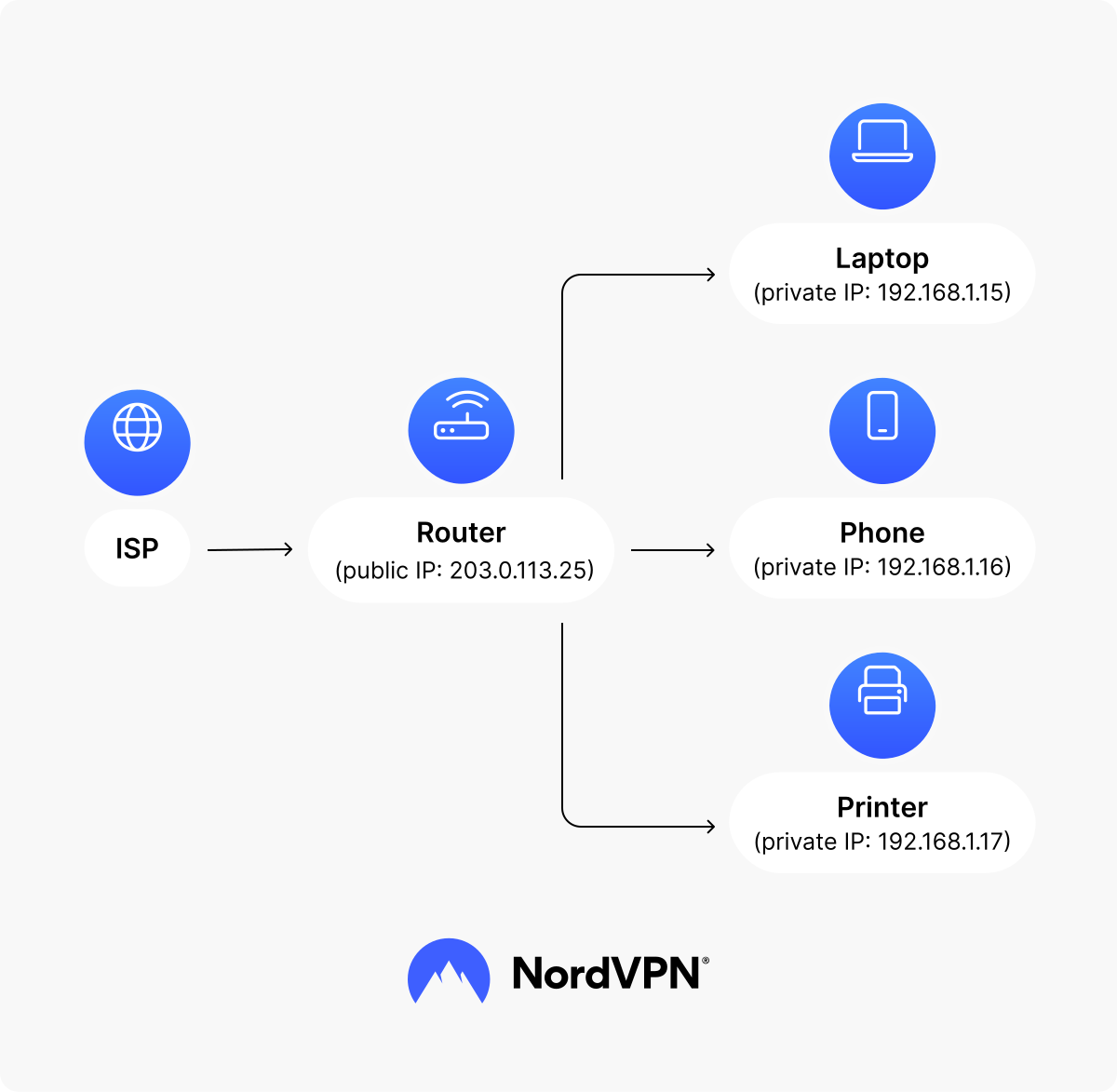
If you’re trying to figure out how to change your public IP address, changing the IP in your laptop or phone’s Wi-Fi settings is the wrong approach.
Carrier-grade NAT (CGNAT) adds another twist. Some ISPs use CGNAT to let multiple customers share a single public IPv4 address. If your provider does this, rebooting your router won’t give you a new public IP.
When checking types of IP addresses, you may also find another classification for public IP addresses: static and dynamic IP addresses. A static IP is configured to remain the same, while a dynamic IP address changes over time.
How to change your IP address
The following methods deal with changing the public-facing IP that websites see rather than the private address assigned to an individual device.
Rebooting your router
If your ISP assigns you a dynamic public IP, disconnecting from and reconnecting to the internet may result in a new one.
Here’s how to change an IP address on a router:
- 1. Find your router’s IP address and write it down.
- 2. Turn off your router and modem. If you use one combined modem/router, turn off that device.
- 3. Unplug it for at least one minute. Some ISPs may require a longer disconnection to release the old DHCP lease.
- 4. Reconnect the modem/router and wait for the internet connection to return.
- 5. Check your public IP again.
There’s no guarantee your IP will change. Your ISP may give you the same address again, use long DHCP leases, assign a static IP, or use CGNAT.
NOTE
If you want to change the router’s IP address, log in to the router’s admin interface and look for “LAN,” “Network,” or “DHCP” settings. Compatible routers let you change the router’s LAN IP and DHCP address range, but the exact options depend on the manufacturer.
Reconnecting to the cellular network
To change your IP address on your phone while using cellular data, you can try prompting a new IP by reconnecting to the cellular network:
- 1. Turn airplane mode on.
- 2. Wait about 30 seconds.
- 3. Turn airplane mode off and reconnect to cellular data.
- 4. Check whether your public IP has changed.
You can also disable and re-enable mobile data. Neither approach guarantees a new address because your carrier may assign the same IP address again or use CGNAT.
Using a VPN
One of the simplest ways to change your IP address is to use a VPN service. When you connect to a VPN, all your traffic runs through a VPN server, and websites see that server’s details. When you access a website, the data you request is sent to the VPN server’s IP address and then forwarded to you.
To set a VPN up:
- 1. Download your VPN provider’s app from its website or your device’s app store.
- 2. Open the app, sign in, and choose a server location.
- 3. Click the “Connect” button. Websites will now see the VPN server’s IP address.
- 4. Change your VPN location or reconnect whenever you want to browse with a different IP address.
Connecting to VPN servers in different countries also lets you change your IP address location. Additionally, a VPN encrypts traffic between your device and the VPN server. This provides a more secure browsing experience on public Wi-Fi networks and helps prevent your ISP or others on the local network from seeing the contents of that encrypted traffic.
NordVPN has thousands of servers covering 225 locations worldwide, doesn’t track your online activity, and includes additional safeguards, such as DNS leak protection and a Kill Switch. It helps you browse more privately and securely online.
Using a proxy server
A proxy acts as an intermediary between an app and the internet. Your requests go to the proxy first and are then forwarded to their destination, so websites see the proxy server’s IP address. As with a VPN, your network’s IP address hasn’t actually changed, but in practical terms you’re operating online as if it had.
Proxies come in several types, including web, HTTPS, and SOCKS proxies. They also differ in how much they hide about you. Anonymous proxies, for example, conceal your IP from the destination site.
Unlike a VPN, most conventional proxies don’t encrypt all your device’s internet traffic system-wide. Proxies are typically configured for a particular app or browser, while a VPN generally routes traffic at the operating system level.
Be especially careful with random free proxy lists. The operator may monitor traffic passing through the proxy, and free servers can be unstable, apply data limits, or have poor security. Some may also monetize user browsing data.
Contacting your ISP
You can reach out to your ISP and ask it to change your public IP address. Alternatively, if you wait long enough and your ISP uses dynamic IPs, your public IP address will change automatically, though this usually only happens every few months. Static public IPs may be available as an optional service for remote access, hosting, or allowlists, particularly on business plans.
How to change your IP address manually
The instructions below change the local IP of a specific device rather than the public IP visible to websites. If you’re looking for how to change an IP address on a computer or phone for network configuration purposes, this is the section you need.
Before setting a static IP, check your router’s subnet, gateway, and DHCP range. Choosing an invalid address or one already assigned to another device can disconnect you or create an IP address conflict.
How to check whether your IP address has changed
Whatever method you use to change a public IP address, verify the result:
- 1. Check your current IP address before making the change.
- 2. Change the IP using the appropriate method.
- 3. Check it again and compare the two addresses.
Remember that an online IP checker shows your public IP. To confirm that you changed a private address, check the network settings on the device itself. This guide explains how to find your IP address on different devices.
Online security starts with a click.
Stay safe with the world’s leading VPN