What is malware?
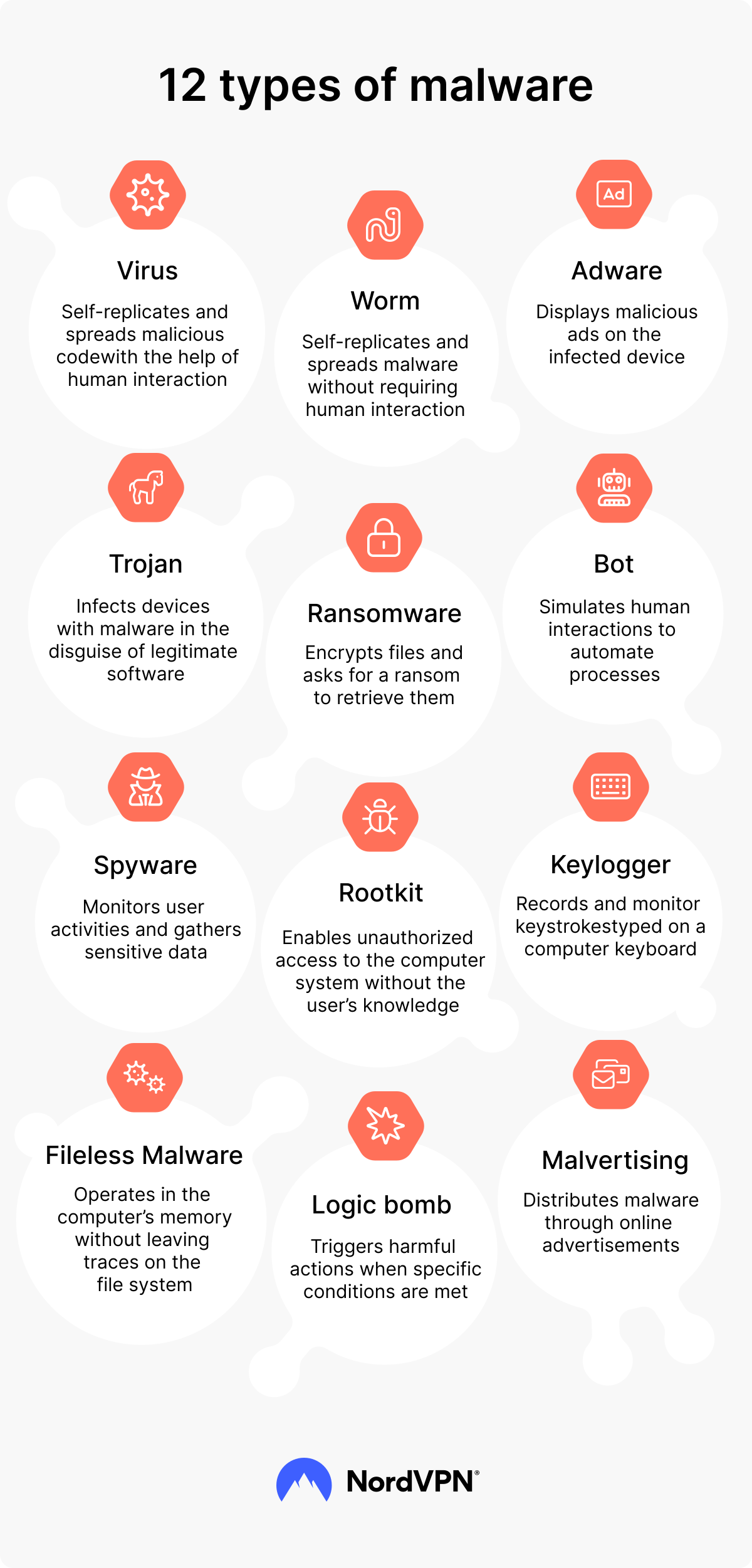
Malware (short for “malicious software”) is a category of computer programs designed to damage, disrupt, or gain unauthorized access to a device or its data. Different types of malware include computer viruses, ransomware, spyware, trojans, adware, worms, and rootkits.
Malware vs. virus: What’s the difference?
All computer viruses are malware, but not all malware are viruses. A virus is a specific type of malware that self-replicates and spreads between files, corrupting them as it moves. Malware is an umbrella term that covers viruses and other types of malicious software like spyware, ransomware, and trojans. For a more detailed comparison, check our malware vs. virus article.
How do you know if your device has a malware infection?
Most malware is designed to stay undetected, but it usually leaves traces behind. If you notice the following signs of malware, take action to secure your device:
-
Your device runs slowly. Apps have long load times, and your device freezes or crashes more than usual.
-
Unexpected pop-up ads appear. Disruptive ads show up on websites or apps that don’t normally have them.
-
Your default browser settings changed without your input. You have a new browser homepage or default search engine, but you didn’t set them.
-
New toolbars, extensions, or apps appear. New programs and features show up on your device without your permission.
-
You see strange emails or social media posts. Some malware programs hijack your accounts and send messages without you realizing.
-
Your antivirus program or system tools don’t open. Tools like Task Manager are locked, preventing you from ending the malicious process..
-
Your battery drains quickly, and your device overheats. It could mean some software on your device uses more resources than usual. This is the easiest to spot on a smartphone, so it can be one of the first signs of a virus on your phone.
-
Your internet data usage spikes unexpectedly. You notice a sharp rise in data usage in your device or router settings, even though your online behavior hasn’t changed.
On their own, these signs don’t necessarily mean malware has infected your device. However, if you see several of them at once, it’s a strong indication that something may be wrong.
Apple devices don’t get viruses… Right?
macOS and iPhone devices are commonly known for their closed systems, so many people assume they’re immune to malware. But they’re not. Learn more about macOS and iPhone (not) getting viruses in the following articles:
How does malware get on your device?
Malware can infect your device in several ways, and most of them exploit routine online behavior rather than technical flaws. Understanding these entry points is the first step to avoiding them. Here are the most common ways malware gets onto your device:
1. Phishing attacks
-
How your device is exposed to malware:
Emails, text messages, social media posts, QR codes
Your device can be exposed to malware via phishing emails and messages. Downloading and opening an infected email attachment, such as a macro-enabled document or executable file, can install malware on your device. Furthermore, clicking a malicious link in a phishing message or QR code can redirect you to a malicious website that downloads malware onto your device.
2. Drive-by attacks
-
How your device is exposed to malware:
Fake or compromised websites, malicious ads
Drive-by download attacks can install malware onto your device via compromised or fake websites and malvertising. Attackers exploit your browser’s vulnerabilities or misconfigured settings to download malware onto your device when you visit their site or load malicious ads. If your browser is up to date and secure, drive-by download sites can still try to trick you into downloading malware by asking you to accept a “browser update,” allow notifications, close annoying ads, or take other actions on the page.
3. Suspicious software bundles
-
How your device is exposed to malware:
Cracked or free software downloads, pirated content
Malicious code can hide with or be substituted for other software or files that people often download online. The inclusion of malware is likeliest with software acquired from unofficial stores or questionable websites, or when you download content illegally.
4. Malicious apps and browser extensions
-
How your device is exposed to malware:
App and browser extension stores
Malware can sometimes sneak into app and browser extension stores as legitimate products. These browser extensions or apps may seem beneficial, but they can be designed to corrupt your files or steal your sensitive data.
5. Infected USB drives
-
How your device is exposed to malware:
Data storage devices
Cybercriminals can load malware onto a USB drive or hard drive, then plug it into your device if they get physical access to it. You can also find infected USB drives “accidentally” — don’t let your curiosity get the better of you, and don’t plug them into your computer.
How to remove malware: A six-step guide
If you think you have malware on your device, follow this step-by-step process to remove it:
1. Disconnect from the internet
Start by disconnecting your computer from the internet. You can do this by turning off your Wi-Fi, enabling airplane mode, or unplugging your Ethernet cable if you’re using one.
This step is essential because malware often relies on an internet connection to work. Without the internet, the malware program can’t send your data back to the cybercriminal running it. Turning the internet off also prevents malware from spreading to other devices on your network.
2. Enter safe mode
Next, restart your computer in safe mode. When your computer is in safe mode, it only loads essential drivers. If the malware is set to auto-launch, safe mode prevents that from happening, making it easier to detect and remove. Make sure you’re still disconnected from the internet when your computer restarts.
To enable Safe Mode on Windows 11, use the following steps:
- 1. Press the Windows key + i to open “Settings.”
- 2. Click on “System” and then select “Recovery.”
- 3. Click “Restart now” under the “Advanced startup” section.
- 4. Your computer will restart and display the “Choose an option” screen.
- 5. Select “Troubleshoot” and then “Advanced options.”
- 6. Click on “Startup settings.”
- 7. Click the “Restart” button.
- 8. On the Startup settings screen, press the F4 key to enable Safe Mode.
The process of enabling Safe Mode on Mac is simpler:
- On Intel-based Macs: Hold the “Shift” key while rebooting your device.
- On Apple silicon Macs: Shut down the Mac, then press and hold the power button until "Loading startup options" appears. Select the startup disk, then hold Shift and click "Continue in safe mode."
To enable safe mode on Android, press and hold the power and, depending on your smartphone model and version, volume up or down buttons. Press and hold the on-screen “Power off” option until a safe mode prompt appears. Select the safe mode option (“Reboot to safe mode,” “Restart in safe mode,” or “Safe mode”) and tap “OK.” This process might look slightly different depending on your Android device or model.
3. Run a malware scan
Next, use reputable security software to do a full scan of your device. Chances are your operating system already has one built in. Many Windows devices have Windows Security built in, and Mac devices come with XProtect.
After the scan is complete, review the results, then delete the malware programs and any other associated files from your system. Run another scan with a different security tool. If you’ve had antivirus software on your device for a while, the malware program might have been able to evade it. Moreover, different security tools use different detection engines, so a second scan can catch threats the first tool missed.
4. Remove suspicious extensions and apps
Many malware programs can add malicious browser extensions and apps to your device. These tools can continue to cause damage even after you’ve deleted the original malware program from your device.
Start by removing any malicious extensions from your browser. These are also sometimes called “browser hijackers.” Go to your browser’s settings, select “Extensions,” then remove anything that looks unfamiliar or suspicious.
Some malware programs can also change your browser’s default homepage and search engine. If that’s the case, reset these to your preferred pages. Clear the cache in your browser settings to remove any leftover traces of the malware.
Next, delete apps you don’t recognize from your device. You can do this via Control Panel on Windows devices or go to the “Applications” folder on Mac devices. On Android or iOS devices, go to “Settings,” then “Apps.”
Finally, delete temporary files from your device. Many malware programs leave temporary files behind, and those files can slow down your device’s performance. You can do this with the “Disk cleanup” function on Windows or “Manage storage” option on Mac.
5. Change your passwords from a clean device
Many types of malware, including keyloggers, spyware, and infostealers, can capture your usernames and passwords before you notice something’s wrong. If you detect malware on your device, assume all your passwords could have been compromised.
To re-secure your accounts, use a different, uninfected device to change the passwords on all your online accounts. Start with your email account, bank account, and any e-commerce accounts with stored payment information because these accounts are the most sensitive and vulnerable to account takeover.
Consider using a password manager to help you create strong passwords and keep them safe. Once you’ve changed your passwords, enable two-factor authentication everywhere it’s available for an extra layer of protection.
6. Restore or reset if needed
If you have a full backup of your system from before the malware infection, you can restore that backup to get your device up and running again. This step is a last resort if other tactics aren’t working, because you may lose some files.
In some cases, you may not have a clean backup of your system from before the malware infection started. In this case, try a full factory reset of your device, or reinstall a clean version of your operating system. This approach removes the malware, but it also wipes all your other files.
If your files haven’t been damaged, back them up before resetting your device. Scan them with a security tool on a clean device to make sure they’re safe before fully restoring them.
Platform-specific malware removal
Every operating system has different settings and security measures. Use these specific instructions to remove malware on Windows, Mac, Android, and iPhone devices.
How to remove malware on Windows
To remove malware on Windows, you can start by using the operating system’s built-in security tools. Windows Security includes features like Microsoft Defender Antivirus and Smart App Control to keep your device safe.
If you think you have malware on your device, you can remove it using Microsoft Safety Scanner, which identifies and removes these dangerous software programs. It’s a free tool for cleaning an infected Windows computer.
Another strategy is to use Windows’ Malicious Software Removal Tool (MSRT). This tool runs automatically as part of monthly Windows updates, but you can also run it manually whenever you suspect a malware infection.
How to remove malware on Mac
To remove malware on Mac, you can use a third-party malware scanner to check and remove malware. While macOS has XProtect built in as anti-malware software, it checks files as you open them but doesn’t scan your device on demand. That makes it useful for preventing malware but doesn’t provide much help once you already suspect an infection.
When it comes to macOS malware, watch out for adware on Mac devices. At first, the adware may not seem like a big deal because it doesn’t steal your data or damage your files. However, the unwanted ads and browser extensions can slow your device down, eventually making it difficult to use.
How to remove malware on Android
To remove malware on Android, start by turning on safe mode. This setting disables all nonessential apps so you can find malware programs. Once you have safe mode on, you can go to “Device admin apps” to deactivate any suspicious apps that have admin access. Additionally, check “Apps” to uninstall apps you don’t recognize.
Android devices also conduct automatic daily scans using Google Play Protect. This feature checks your device for security risks and can identify, deactivate, or remove malicious apps.
PRO TIP
Make sure Play Protect is enabled at all times. Among other malicious software, it can help you find and remove adware from your phone before it has the chance to cause any annoyances.
How to remove malware on an iPhone
iPhones rarely get traditional malware because Apple's app review and sandboxing make it harder for malicious code to run. However, if you suspect malicious activity on your smartphone, it’s worth it to check for unauthorized configuration profiles, hijacked browser settings, and apps that slipped past review.
Check your iPhone for viruses and other malware, and if you see any suspicious apps on your device, remove the malware from your iPhone by pressing on the app icon and deleting it. Follow up by restoring your iPhone from a clean backup.
If you suspect browser hijacking on your iPhone, start by clearing your Safari history and cache to remove any malicious cookies. Then identify and remove any unknown configuration profiles by going to “Settings,” then “General,” and “VPN & device management.”
How to protect your devices from malware
With the right security measures, you can prevent malware attacks before they happen. Use the following tips to prevent ransomware and other malware from getting onto your device.
- 1. Keep your operating system, browser, and apps updated. Many cybercriminals use vulnerabilities in outdated apps to launch their attacks.
- 2. Use a robust antivirus or anti-malware tool. These tools serve as your first line of defense against attacks, so make sure they scan your devices automatically.
- 3. Be wary of email attachments and links from unknown senders. Phishing is the most common malware delivery method, so always be on the lookout for suspicious messages.
- 4. Only download software from official sources. Stick to the Apple App Store and Google Play Store on mobile devices or the official vendor website on desktop devices.
- 5. Back up essential files regularly. Use an external drive or cloud storage service to make extra copies of important files. If a ransomware attack targets you, you’ll still have backup copies of everything.
Why traditional antivirus isn’t enough anymore
As malware attacks get more sophisticated, traditional antivirus software isn’t always enough to keep your device safe. Traditional antivirus tools were built to identify and remove malicious files on your device. However, if you fall victim to a phishing scam or identity theft, you could experience a data breach and financial loss without malicious code ever reaching your device.
That’s why NordVPN offers a next-gen antivirus. It’s a digital threat protection tool that protects your computer from malware-ridden downloads, blocks ads and trackers, guards you from scams and phishing by alerting you about dangerous websites, emails, and messages, and warns you about compromised credentials and dark web leaks. NordVPN’s next-gen antivirus is available on Windows and macOS with most NordVPN plans. You can learn more about it in our next-gen antivirus whitepaper.
The trademarks referenced are for illustration purposes only. NordVPN is not affiliated with, sponsored by, or endorsed by their owners.
Online security starts with a click.
Stay safe with the world’s leading VPN
