
What is a SOCKS5 proxy?
A SOCKS5 proxy is a proxy server that routes your internet traffic through an intermediary server, hiding your real IP address and giving you more flexibility than older proxy types. Unlike standard HTTP proxies, which are limited to web browsing, SOCKS5 supports multiple protocols — including both UDP and TCP protocols — so it works with almost any application, from video streaming to peer-to-peer sharing.
The SOCKS5 network protocol also improves on earlier proxy types with enhanced security and three authentication methods:
- Null authentication: No authentication required to connect to a proxy.
- Username/password authentication: You need to provide login details to connect to a proxy.
- GSS-API authentication: Both you and the server use authentication methods at the operating system level to verify your identity.
SOCKS operates on Layer 5 of the OSI model, also known as the session layer, which manages communication sessions between devices. Because it doesn’t rewrite data packet headers, SOCKS5 reduces errors and delivers superior performance for traffic-intensive tasks.
SOCKS5 vs. SOCKS4
SOCKS4 was the earlier version of the socks proxy protocol. It worked well for basic browsing but had serious limitations. For example, it only supported TCP connections, so you couldn’t use it for traffic-intensive tasks like video streaming or live calls. It also had no authentication methods, which meant anyone who reached the proxy server could use it — a clear security risk.
SOCKS5 is the modern upgrade. A SOCKS5 proxy can handle both TCP and UDP protocols, giving it much broader support for various applications. Whether you’re downloading files, playing games, or managing social media accounts, SOCKS5 is more flexible. It also introduced authentication options like password authentication, which makes access more secure.
In practice, SOCKS4 is outdated. If you want a proxy server that hides your IP address, supports multiple protocols, and provides enhanced security, SOCKS5 is the better choice.
SOCKS5 vs. HTTP
HTTP proxies and SOCKS5 proxies both route your connection through a proxy server, but they are built for different purposes.
HTTP proxies are application-level tools meant purely for handling website requests. They can modify or cache web data to speed up browsing or filter content, but they choke on anything outside plain web traffic. SOCKS5, on the other hand, operates at a lower level. It simply passes data packets without interpreting them, which makes it far more flexible — able to handle email clients, games, torrents, and other non-web applications efficiently.
If you need a proxy for routine browsing or content caching, HTTP is fine. If you care about speed, error-free transfers, or supporting many protocols, SOCKS5 wins.
SOCKS5 vs. HTTPS
At first glance, an HTTPS proxy and a SOCKS5 proxy look similar — both route your connection through a proxy server and hide your IP address. The difference comes down to encryption and flexibility.
HTTPS proxies add a security layer to traditional HTTP by encrypting your connection between browser and proxy. They’re great for safe web browsing on public Wi-Fi or hiding visited websites from prying eyes — but they still only work for web traffic.
SOCKS5 proxies don’t encrypt data by themselves, but they support authentication and work across almost any app. They’re ideal when you need versatility — like streaming, file transfers, or app-based connections — and you can pair them with a VPN if encryption is essential.
So if your priority is encrypted web browsing, choose HTTPS. If you want broader compatibility and better performance, SOCKS5 is the smarter option.
How does a SOCKS5 proxy work?
A SOCKS5 proxy works by routing network packets between a client and a server via the proxy server, in order to bypass internet restrictions and access blocked websites or services.
Technically speaking, SOCKS5 (the latest version) uses proxy servers to form User Datagram Protocol (UDP) or Transmission Control Protocol (TCP) connections through arbitrary IP addresses.
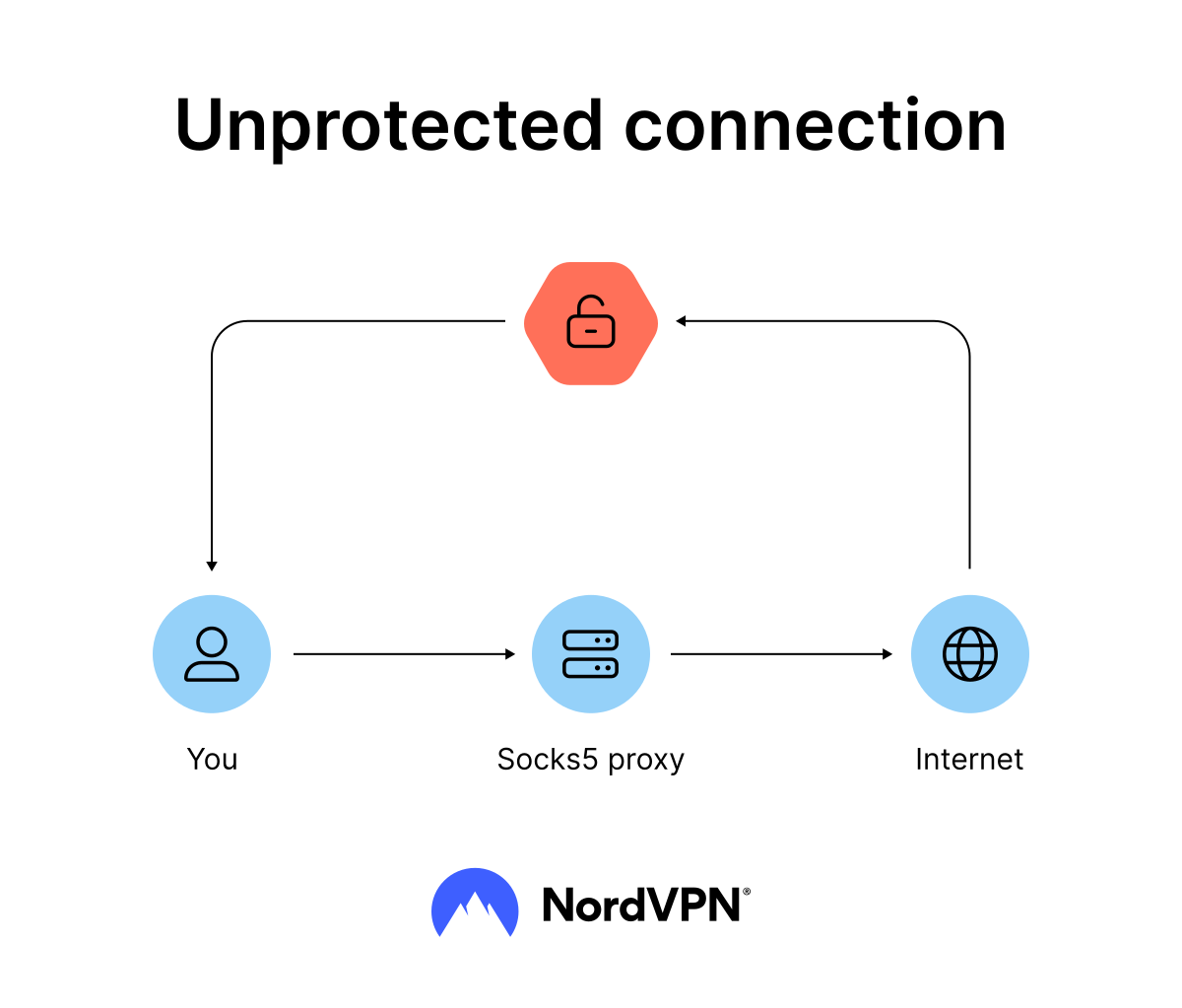
For example, if your IP is 1.1.1.1 and your traffic is routed through a SOCKS5 Proxy with the IP 2.2.2.2, the destination server (the website) thinks that the request came from the latter and cannot see your original IP address. This helps you hide your location, but it doesn’t mean that your traffic is secure.
Unlike virtual private networks (VPNs), proxies do not encrypt your traffic — it’s still out in the open, and anyone can snoop on what you are doing.
Although SOCKS proxies are part of anonymous proxies, there is no such thing as a 100% anonymous SOCKS proxy server, because it’s impossible to be truly anonymous online. No single proxy provider, encrypted messaging app, or VPN will make you anonymous. Still, there are steps you can take to improve your anonymity online.
Check our brief video about SOCKS5 below.

SOCKS5 proxy servers benefits
Using a SOCKS5 proxy provides several benefits, including (but not limited to):
- Bypassing online blocks.
- Improved privacy and IP protection.
- Improved performance.
- Compatibility with many applications and devices.
Let’s take a closer look at some of these benefits.
1. Getting around online blocks
Since proxy servers act as relays between your device and the internet, they can easily help you bypass internet blocks.
For example, if your actual IP address was blocklisted by a certain website (or you use a VPN and its servers' IP addresses were blocklisted) you can route your traffic through a SOCKS5 proxy and so bypass this block. However, it won’t help you to circumvent national firewalls in the way that a VPN will, as most of them use deep packet inspection (DPI). This means that your traffic gets blocked by your ISP before it reaches the website.
2. Faster and more reliable connection
Unlike its predecessors, which only used the TCP protocol, SOCKS5 proxy servers can use the UDP protocol, ensuring a reliable connection and efficient performance.
With UDP, a SOCKS5 proxy can move data quickly and offer a reliable connection. A SOCKS5 proxy server is also capable of caching data, speeding up the overall internet experience. You can also speed up your proxy connection by choosing a SOCKS5 proxy server closer to your location.
3. Fewer errors and improved overall performance
Many other proxies rewrite the headers on data packets. Because of this, there’s a high chance of misrouting or mislabeling that data.
SOCKS5 proxy servers do not rewrite data packet headers, so there is a lower chance for errors. And since there are far fewer errors, the performance automatically improves. However, this comes at a cost of your privacy and security as packet headers contain your personal information and can be easily identified.
4. Better performance on P2P platforms
SOCKS5 is faster than other proxies because it transfers smaller data packets. Therefore, it offers faster download speeds, which is why some people use it to connect to peer-to-peer sharing websites and platforms.
Setting up a SOCKS5 proxy
You can set up a SOCKS5 proxy using the steps listed below. This guide covers Windows 10 and 11 as well as macOS.
How to set up a SOCKS5 proxy manually on Windows OS
- 1.Go to “Settings” > “Network & internet” > “Proxy.”
- 2.Under “Manual proxy setup,” toggle the “On” button.
- 3.Fill in details about your proxy server.
- 4.Click “Save.”
How to set up a SOCKS5 proxy manually on macOS
- 1.Go to “System preferences” > “Network” > “Advanced” > “Proxies.”
- 2.Select the “SOCKS proxy” protocol in the menu.
- 3.Type your proxy server address.
- 4.Click “OK.”
How to set up a SOCKS5 proxy on a browser
Most modern browsers allow you to connect through a SOCKS5 proxy, but the process varies. In most cases, the browser relies on your operating system’s proxy settings. You’ll need your proxy server’s IP address, port number, and — if required — your login credentials from your proxy provider.
Google Chrome (via system settings)
- 1.Open Chrome and go to “Settings” > “System” > “Open your computer’s proxy settings.”
- 2.Enter the SOCKS5 proxy server address and port number provided by your service.
- 3.If your provider requires password authentication, add your username and password.
- 4.Save changes and restart Chrome.
Mozilla Firefox
- 1.Open Firefox and go to “Settings” > “General” > “Network Settings.”
- 2.Select “Manual proxy configuration.”
- 3.Enter your SOCKS5 proxy server details (IP address and port).
- 4.Choose “SOCKS5” under proxy types.
- 5.Add authentication options if required and click OK.
Safari (macOS)
- 1.On your Mac, go to “System Settings” > “Network.”
- 2.Select your active network, then click “Details” > “Proxies.”
- 3.Check the box next to “SOCKS Proxy” and enter your server’s IP and port.
- 4.Add your account login if your provider requires it, then click Apply.
How to set up a SOCKS5 proxy on a mobile device
Mobile operating systems also support SOCKS5 proxies, though setup is limited to Wi-Fi networks. You’ll need your proxy provider’s details: IP address, port number, and — if enabled — authentication credentials.
iOS (iPhone/iPad)
- 1.Go to “Settings” > “Wi-Fi.”
- 2.Tap the “i” icon next to your active network.
- 3.Scroll to “Configure Proxy.”
- 4.Select “Manual” and enter your SOCKS5 proxy server’s IP address and port.
- 5.If required, enable password authentication and add your credentials.
- 6.Save the settings.
Android
- 1.Open “Settings” > “Network & Internet” > “Wi-Fi.”
- 2.Long-press your active Wi-Fi network and select “Modify Network.”
- 3.Tap “Advanced options.”
- 4.Under “Proxy,” select “Manual.”
- 5.Enter the SOCKS5 proxy host IP address, port number, and account login if needed.
- 6.Save and reconnect.
Keep in mind: On both iOS and Android, these settings only apply to the Wi-Fi network you configure. If you switch networks, you’ll need to re-enter your SOCKS5 proxy details.
How to check if your SOCKS5 proxy works
After setting up a SOCKS5 proxy, it’s important to verify that your traffic is actually being routed through the proxy server. Here are a few quick checks you can run:
- Compare your IP address. Before enabling the proxy, search “what is my IP” in your browser. Then, connect through the SOCKS5 proxy and run the same check. If the IP address changes to match the proxy server’s location, the setup is correct.
- Run a DNS leak test. Even when using a proxy, some web traffic may reveal your DNS requests to your ISP. Visit a DNS leak test website to make sure all queries are passing through the proxy server.
- Check traffic inside apps. Some applications display the server region or connection details. If you see the proxy server’s IP address instead of your real IP address, the SOCKS5 proxy is active.
- Confirm authentication. If your proxy provider uses authentication options like password authentication, test them by logging in. A successful login confirms that secure authentication is working.
SOCKS5 proxy troubleshooting
Even the best SOCKS5 proxy servers can run into issues. Most of them are easy to solve if you know what to look for. Here are the most common errors and fixes:
- Connection timed out. This usually means the proxy server is unreachable. Double-check the IP address and port number you entered. If everything looks correct, the server itself may be down. In that case, contact your proxy provider for support or switch to another server.
- DNS leaks. A DNS leak means your web traffic is still exposing DNS requests to your ISP. Run a DNS leak test to confirm. If leaks appear, update your DNS settings to a secure option or switch to a VPN for enhanced security.
- Slow speeds. If your traffic feels sluggish, the proxy server may be overloaded or located too far from you. Switching to a different SOCKS5 proxy with lower latency can restore faster download speeds and better performance.
- Proxy authentication required. Some services require authentication methods such as password authentication. Make sure you’ve entered the correct username and password from your proxy provider.
- App ignores proxy settings. Not all apps support proxy configurations. If an app bypasses your SOCKS5 proxy, check whether it offers manual proxy setup. If not, using a VPN service that tunnels all traffic may be a better solution.
Online security starts with a click.
Stay safe with the world’s leading VPN