What is NordLocker?
NordLocker is an end-to-end encrypted, privacy-first cloud storage app created by Nord Security, the company behind NordVPN. You can use NordLocker opens in a new tab to store, manage, and share personal files of all formats, like documents, photos, and videos. NordLocker synchronizes data across different platforms, letting you access the files wherever you are.
Unlike most cloud storage providers, NordLocker offers file encryption by default. It combines the AES-256, xChaCha20-Poly1305, and Ed25519 algorithms, end-to-end encryption, and zero-knowledge architecture for file security. All files are encrypted on your device before they’re uploaded to the cloud storage. To decrypt and access them, you need to enter a cloud password, which unlocks the storage. The platform also supports secure sharing, letting you send files to other users and non-users without breaking the encryption.
How does NordLocker work?
NordLocker lets you upload files in any format and manage them individually or grouped into folders. To upload items, you can tap the “Add files” button on mobile devices or drag and drop them on the desktop and web versions. You can add files directly to the default “My files” section or create new folders and subfolders for more personalized file management.
The platform uses end-to-end encryption on the device before files enter the private cloud storage, keeping them protected in transit. By the time the uploading process is finished, the information related to your files is scrambled, and thanks to zero-knowledge architecture, NordLocker can't see what you've added. Once the encryption is complete, all your stored items are synchronized and can be accessed on other devices you use for NordLocker.
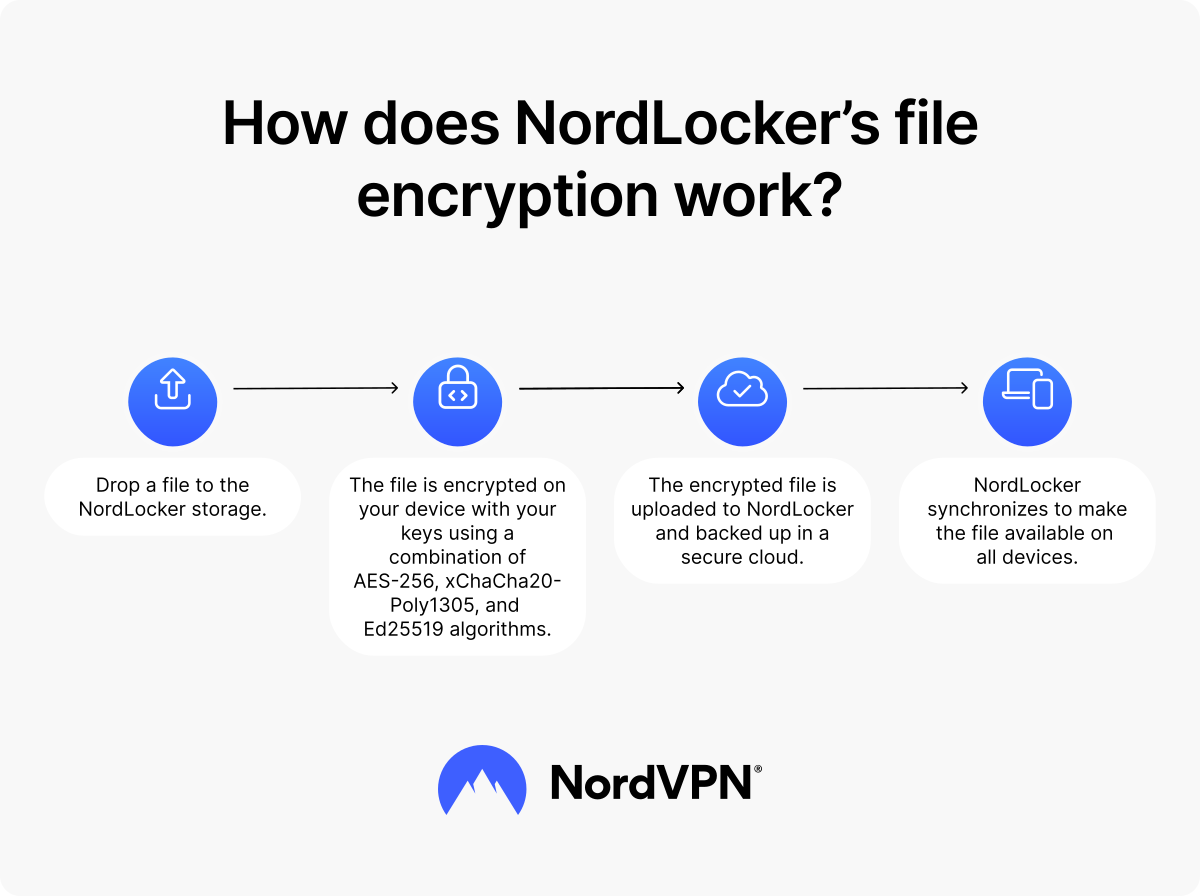
The data is decrypted when you open NordLocker and enter your cloud password, which lets the app know your access attempt is legitimate. When you set up your account for the first time and create your cloud password, NordLocker generates a recovery key. You need to save it in a secure location. If you ever forget your cloud password, you can use the recovery key to restore your access. If you lose both, the only way to regain access to your account is to do a full storage reset. NordLocker then wipes your entire storage as a security measure and lets you set up a new password.
Why you should use NordLocker
Cloud storage is becoming the go-to option for many users, letting them sync files between desktop and mobile devices more easily. However, file security can often go overlooked — most cloud services store files in plain formats. Unless you manually set up password protection, your files can be easily accessed if your device is compromised.
NordLocker offers a privacy-focused alternative for personal file storage. It’s a popular alternative to Google Drive and Dropbox, offering the convenience of cloud storage without compromising file security. Privacy doesn’t just concern external risks — some cloud storage providers can see what you upload. Thanks to encryption on the device, NordLocker can’t see what you store or how you name your files — your storage management is for your eyes only.
File sharing can also be a weak security point. You might send files to friends or family using public links, which can accidentally end up in the wrong hands. NordLocker gives you full control over who can access your files — even if the other person doesn't have an account. You can share secure links that expire after a set time or share by email address. You can also choose whether the recipient gets viewing or editing rights. Shared access controls are easy to manage, and you can revoke access at any time. If you need someone to send you a file, you can generate a link and request an upload to a specific folder.
Read the full NordLocker review for an in-depth comparison of encrypted and traditional cloud storage.
NordLocker's main features
Although NordLocker’s main feature is encrypted cloud storage, it offers extra features that make file management and collaboration simple without compromising data integrity.
Zero-knowledge architecture and end-to-end encryption
Most major cloud storage providers don’t offer encryption by default. This means they can see what you upload and use your data based on their terms of service. Unlike these services, NordLocker is built with zero-knowledge architecture and end-to-end encryption. The team behind this service believes that your data should be yours to keep — whether it’s personal photos or confidential documents. Everything you upload is treated with confidentiality and can’t be accessed without your cloud password.
Encrypted cloud storage and synchronization
Cloud storage offers the convenience of accessing your most important files no matter where you are. As one of the best encryption software options, NordLocker adds an extra layer of security — you can sync and access your files on any device, save local storage space, and keep your sensitive data secure. You can access your storage on Windows, iOS, and Android, or through Web Access in a web browser. Although the platform isn’t currently supported on macOS and Linux devices, users of those systems can still manage files via Web Access.
Secure file sharing
NordLocker offers a secure and easy way to share individual files or folders with users and non-users alike. You can share securely using a unique generated link or an email address. If you wish to share a file with another user, you can enter their email address, and they’ll receive a notification about it. If you want to share files with someone who doesn’t have a NordLocker account, you can generate a sharing link with a security code to let them see only the file or folder you granted access to. All items remain encrypted, and easy access controls ensure you know who has permissions to edit or view them.
Cross-platform access
At one point, you've probably needed a specific document only to realize it was on another device, far out of reach. NordLocker’s quick synchronization and cross-platform access ensure you can access your most important files anywhere in the world. NordLocker is available as a Windows, iOS, and Android app and can be downloaded from the official site as well as the App Store and Google Play. NordLocker Web Access is the browser version of the service, available without installation — so even if your device can’t support the app, you can still locate your files with ease.
Enhanced security methods
NordLocker treats your data privacy as a top priority and uses multiple security measures to ensure your files remain secure. To log in to your storage, you need both your Nord Account credentials and your NordLocker cloud password. This password should not match your Nord Account password — or any other password you have. The recovery key acts as a fallback mechanism you can use in case you forget the cloud password.
As an alternative to the password, you can set up phone unlock using biometric verification on the mobile app. Optionally, you can add multi-factor authentication to your Nord Account and use either an authenticator app, a security key, or a passkey to protect your account access. You can also switch on autolock, which logs you out of the app automatically after prolonged inactivity.
File backups
Backing up your files is a useful digital safety practice. If a ransomware attack targets you, having your files backed up in the cloud can help mitigate the damage and protect you from losing your work altogether. NordLocker lets you back up your files in the cloud, so even if local files on your device are compromised, your cloud storage remains secure.
How much does NordLocker cost?
NordLocker has three plans based on available storage, and one of them is free. The free NordLocker plan lets you store up to 3 GB of files. If you need more storage, you can upgrade to the 500 GB or the 2 TB plan. All plans offer the same level of encryption, ability to share files, and support — the main difference is how much storage space you have.
NordLocker pricing comparison*
Storage | 3 GB | 500 GB | 2 TB |
|---|---|---|---|
Price (one-month plan) | Free | $7.99 | $19.99 |
Price (annual plan) | Free | $2.99/month | $6.99/month |
End-to-end encryption | ✅ | ✅ | ✅ |
Secure sharing | ✅ | ✅ | ✅ |
24/7 support | ✅ | ✅ | ✅ |
30-day money-back guarantee | N/A | ✅ | ✅ |
Disclaimer: The prices and plans were last confirmed on September 24, 2026, and are subject to change.
NordLocker free vs. premium plans: What should you choose?
Once you sign up for NordLocker, you immediately get 3 GB of storage. This may be plenty for some users, especially if they only need cloud encryption to secure their personal documents and confidential files.
However, if you want to use NordLocker to free up space on your phone’s camera roll, those gigabytes might run out quickly. If you need to store high-resolution photos and videos, 3D rendering files, or want to archive finished client projects, you might want to consider upgrading to the 500 GB or 2 TB plan.
NordLocker savings
When you get a paid NordLocker plan, you can choose one-month or one-year billing. The annual plan offers a lower monthly rate, making it the better value. However, you can also save on your NordLocker plan by getting a NordVPN bundle. Some of the available NordVPN plans include 1 TB of NordLocker storage as part of the bundle, letting you get a wider range of cybersecurity tools for less. You can learn more about Nord Security bundles in the dedicated blog article.
Is NordLocker safe and reliable?
Yes, NordLocker is a safe option for cloud data storage. It uses zero-knowledge architecture and encrypts all files on the device before they’re uploaded to the storage. The tool combines AES-256, xChaCha20-Poly1305, and Ed25519 encryption algorithms to optimize file security and privacy.
To access the files, you must enter your cloud password or, if you’ve lost it, use a recovery key. If you don't remember your password and have lost your recovery key, you can request a storage reset. As a security measure, a storage reset permanently deletes all stored files.
How to use NordLocker
Like other Nord Security products, NordLocker is designed with simplicity in mind. That means setting up your storage the first time you open NordLocker takes just a few steps.
To start using NordLocker, you need to:
- 1. Download the NordLocker app or open NordLocker Web Access on your browser.
- 2. Log in using your Nord Account credentials or create a new account if you don’t have one yet.
- 3. Create a unique NordLocker cloud password.
- 4. Save the recovery key in a secure location.
How to add a file
With the setup complete, you can now access your storage and start adding files. You can drag and drop the file into your storage or use the “Add” button:
- 1. At the top left corner under “My files,” select “Add.”
- 2. Select “File upload.”
- 3. Wait for the upload to finish.
How to add a folder
For easier file management, you can create folders:
- 1. At the top left corner under “My files,” select “Add.”
- 2. Select “New folder.”
- 3. Type in the folder’s name and select “Create.”
- 4. Open the folder.
- 5. Drag and drop files to the folder or select “Add” at the top left corner.
- 6. If you upload a file via the “Add” button, select the file from your local storage and click “Open.”
How to share an item
You can share your files and folders with others — even if they don’t have a NordLocker account:
- 1. Click the three-dot menu next to the file or folder you want to share.
- 2. Select “Share.”
- 3. To share the item with a NordLocker user, select “Add people.”
- 4. Enter the user’s email address.
- 5. Select “Invite.”
- 6. To share the item with someone outside NordLocker, select “Share link.”
- 7. Select “Generate link.”
- 8. Copy the link and set an expiration date.
- 9. You can optionally set up a security code for the shared item. The recipient will need to enter this code to access the item. We recommend sharing the link and the security code separately.
How to request an item
You can also request users to upload a specific file to one of your shared folders:
- 1. Open the shared folder you want to use for file requests.
- 2. In the right-side sidebar, under “Request files,” select “Generate link.”
- 3. In the pop-up window, click the “Generate link” button.
- 4. NordLocker will generate a sharing link. Copy it and set an expiration date. Optionally, you can include a security code. You should share the link and the security code separately as a safety measure.
How to add a requested item
If someone sent you a request to share a file, you can do so using the link they sent you:
- 1. If you received a link with a security code, enter the code to proceed.
- 2. Use the “Add” button or drag and drop the files.
- 3. Keep the tab open while the uploading is in progress.
- 4. If you uploaded the wrong file, you can remove it and add a new one.
- 5. Once the upload is complete, you can close the tab.
Using NordLocker for business
Although a dedicated NordLocker business plan isn’t available, the storage can work as a great tool for freelancers to manage and share their projects while protecting their customers’ data.
You can store up to 2 TB of data with one of the premium plans — enough to keep your entire portfolio in one place. Secure sharing creates a convenient way to share items with other users without worrying about losing access. The recipient doesn’t need to have their own NordLocker account — only access to your sharing link and security code.
For efficient collaboration, NordLocker lets you set up shared folders to receive items. You can send a sharing request with a folder where others can drop their files, supporting end-to-end encrypted sharing without external interference. As the Owner, you can adjust access permissions to let others edit or view the files and revoke access to the items at any time simply by deleting the unique file link. This lets you stay in control of your work without disrupting your shared projects.
Online security starts with a click.
Stay safe with the world’s leading VPN