How to test your VPN speed
Testing your VPN speed is easier than setting up an online gaming account. You can do so in just a few short steps:
1. Disconnect from the VPN and run a speed test
The first step when running a VPN speed test is to disconnect from the VPN and open speedtest.net opens in a new tab while connected to a default server offered by the website. Once you run the test, remember or write down your upload and download speeds.
When testing your internet connection speed, choose your country’s internet speed server. To do so, navigate to speedtest.net, find the “Change server” option below the “Go” button, write down your city or country, and click on the preferred server. For more accurate results, set up a static IP address and pick the same server when testing the speed, both with and without a VPN.
2. Connect to a VPN and re-run the speed test
After running the first test, connect to a VPN, choose the same speed test server as when you did the speed test disconnected from a VPN, and run it once again. Mark down the results, like in the first step.
3. Compare download, upload, and ping results
Compare the results of both tests (particularly, download and upload speeds, as well as ping) to find out your VPN speed (or lack thereof). If all is well, the slowdown should be in the range of 5%-20% (minimal range, unnoticeable when browsing). However, if the slowdown is bigger than that, it could indicate some sort of an issue, potentially related to the VPN speed.
How to test your VPN speed when connected to a different country server
If you want to test how fast your internet works with a VPN connected to a server in another country, follow the instructions below.
Let’s say, you’re currently in London, and you want to test how fast your internet connection is with a VPN connected to a US server. To check the internet speed, first turn off the VPN and go to speedtest.net. Below the “Go” button, find the “Change server” option and click on it.
Based on your current location, the speed test will offer you speed test servers around your area. To check the speed of the US server, write any US city that comes to mind (for example, New York), and choose any of the available servers.
After the speed test is complete, write down the numbers and repeat the test with a VPN on. Before the test, make sure to connect your VPN to any of the US servers, regardless of the city.
Run the test again (with the speed test connected to the same server as before) and compare the numbers. Remember that you should take the test results with a grain of salt because the connection speed may vary depending on your internet connection, computer performance, and even your browser.
To get the best results, make sure to close any other pages and applications that might be using a lot of bandwidth. Close all extra tabs and stay off of online video streaming platforms such as Twitch or YouTube during the test.
Test your speed with the NordVPN speed test
The NordVPN speed test tool includes a number of features to accurately analyze your VPN speed. It’s a robust open-source solution that aims to provide a transparent, reliable, and universal VPN speed testing process for VPN users and developers alike.
Among its features, NordVPN’s speed test and comparison tool offers:
- Open access to every user.
- Thoroughly explained process documentation.
The best way to conduct a VPN speed test is to do so in a controlled environment where such factors as internet connection, computer performance, or browser won’t influence the results.
To start using the NordVPN speed test and comparison tool, please refer to the readme file on Github opens in a new tab.
How to read the VPN speed test results
A speed test will check your internet speed — and, by extension, that of your VPN — by analyzing three key metrics: upload speed, download speed, and latency (ping). Upload and download speeds are measured in Mbps (megabits per second), while ping shows the ms (milliseconds). Here’s what they all mean:
- Download speed: This is how fast or slowly data from the internet is reaching you. The higher this number, the faster you’ll be able to enjoy online gaming, stream videos, download files, and access different pages. If you're specifically interested in gaming, you can learn more about internet speed requirements for gaming.
- Upload speed: This is the rate at which you send data and requests to the web. Low upload speed will be particularly problematic if you’re streaming to other devices — for example, during a video call or on Instagram Live.
- Pings: You’ll also get a result for your “ping rate,” which represents the overall speed (also known as latency). The lower your ping number, the faster the response time (and, therefore, your internet). Say your speed test result shows 80 ms ping while your VPN is on. That means it took about 80 milliseconds for a data packet to be sent from your device to a server and back.
To test your VPN speed, make sure to run your speed test with and without a VPN.
PRO TIP: Make sure to use a paid VPN. Free VPNs might be a tempting option, but they just can’t offer the same speed and security as their premium counterparts.
What affects the VPN speed
Your VPN speed can depend on various multiple factors. The most common include:
Your internet connection speed
This is usually the first suspect in every buffering crime. To check if a poor connection is indeed the fault of your internet provider, make sure to perform the speed test without a VPN.
Distance to server location
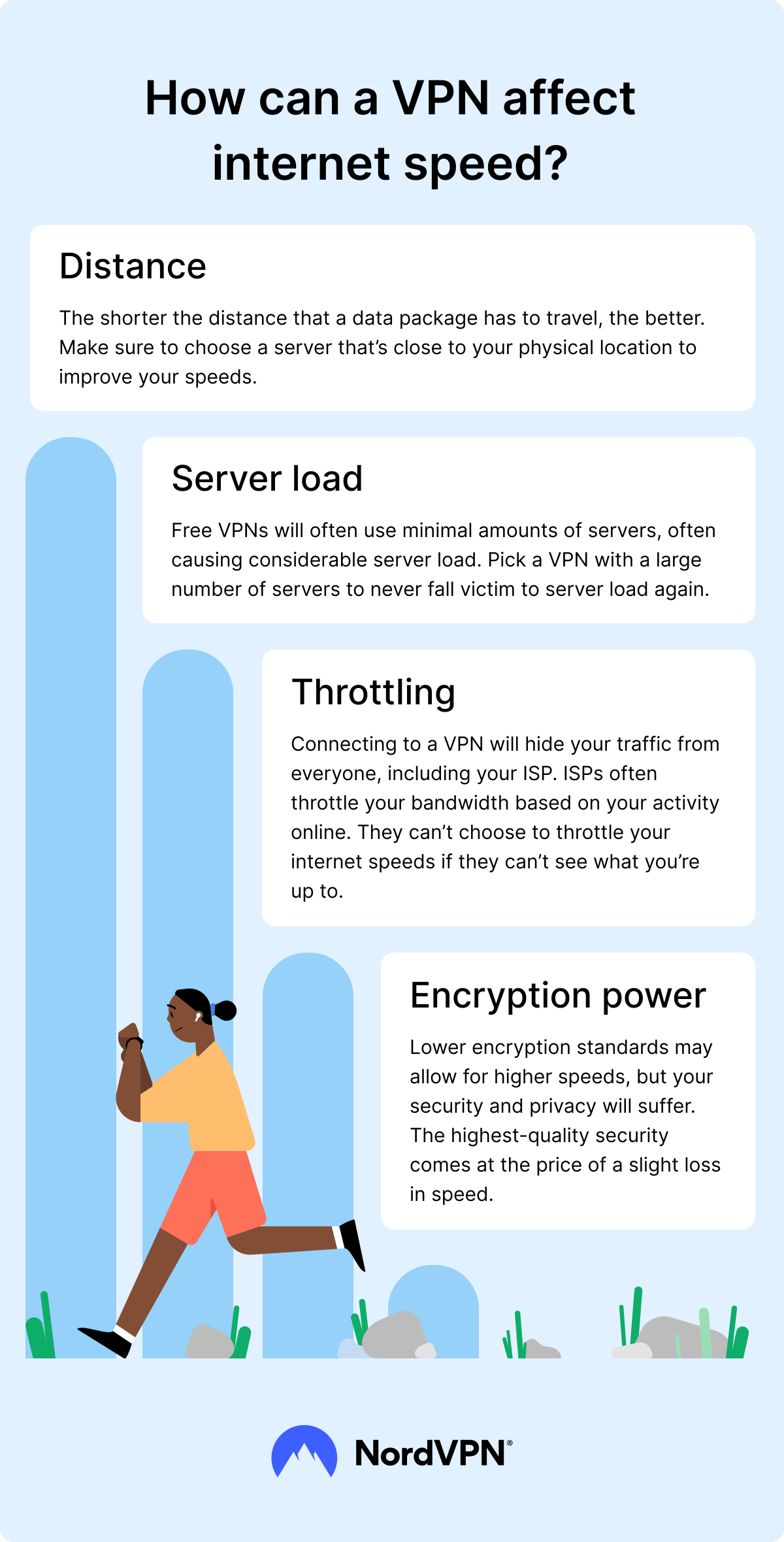
The further you are from a server – the further it takes for the internet connection to reach its destination. While, compared to the distances, the time for your device to connect to VPN servers is often ridiculously short, speed drops between long distances (for example, Spain and Brazil) can and do occur.
Server overload
Overcrowded VPN servers are a thing, and they do slow down your internet speed if you’re connected to one. Intense server loads might occur when connecting to the most popular VPN servers during peak hours, such as the UK or US.
VPN protocols
With VPN protocols it’s usually speed vs. stability. For example, if you’re using OpenVPN UDP, your connection will likely be faster than that of OpenVPN TCP. However, if you’re looking for the best of both worlds, consider using NordLynx, a proprietary NordVPN protocol which is built based on WireGuard – one of the fastest and most robust open-source VPN protocols.
VPN server hardware
Every VPN server has its limitations. Whether it’s the CPU specifications or storage size, the servers can slow or, in rare cases, even shut down due to unforeseen circumstances, such as too many connection requests or hardware failures.
How can you increase VPN speed?
Sometimes you might notice a small drop in your download speeds or a spike in your ping rate even if you’re using a high-quality VPN. Don’t give up on encryption too quickly — there are several things you can try to optimize your connection speeds:
- Disconnect and reconnect. A good VPN provider will maintain multiple servers in more populous areas. For example, NordVPN has more than 2,000 servers in the US alone. If your internet speed is slowing down, there may be an issue with the specific server you’re on, so just reconnect to a different one in your chosen location.
- Change security protocols. Different VPN encryption and security protocols can alter internet speeds, so try changing your protocol if you need to. If you’re using NordVPN, you can switch between the OpenVPN and NordLynx protocols right in the app.
- Pick a new geographical location. If the issue is geographical, you can just pick a new server in another country. NordVPN offers more than 7,800 servers in 150 countries around the world. You can always find a location that gives you the best internet experience.
- Close unused tabs and applications. Even if left unused, open tabs and applications still use data and can slow down your internet speed. Check your computer’s Task Manager (or Activity Monitor, if you’re using macOS) to see and close all unnecessary running programs.
- Reboot your router and computer. If nothing else works, might as well try to turn it off and on, right? Rebooting your devices can sometimes clear the speed obstructions that occur while browsing. To know if the universal solution did the trick, check your VPN and internet speed once you’ve rebooted the system.
- Consider switching to a new provider. If you continue to experience the same problem over and over again, it might be time for a drastic change. Switching internet or VPN providers might solve internet speed issues. However, before doing so, make sure you’ve tried every other solution. In addition, weigh the free vs. paid VPN options carefully — free VPN providers often have limited bandwidth and slower speeds, which can make performance problems worse.
Check out our video on improving VPN connection speed below:

You should never have to pick between security and speed. At NordVPN, we believe you deserve both. That’s why we built NordLynx, the fastest security protocol yet. It’s been a game changer for many of our users.
Online security starts with a click.
Stay safe with the world’s leading VPN